Deploying an Azure Network Connection (ANC) for W365 – A step by step guide
1. Overview
An Azure network connection (ANC) is the Windows 365 object that links your tenant’s Cloud PCs to an Azure virtual network (vNet) that you own and manage. The ANC is what allows Cloud PCs to be provisioned inside your organization’s network, domain-joined where required, and reached by Intune for ongoing management — instead of relying on a Microsoft-hosted network with no connectivity back to on-premises resources.
Windows 365 supports two types of ANC, selected when the connection is created:
- Microsoft Entra Join — cloud-only join, no on-premises Active Directory dependency.
- Hybrid Microsoft Entra Join — Cloud PCs are joined to an on-premises (or Azure-hosted) Active Directory domain and synchronized to Microsoft Entra ID, in addition to the vNet requirement above.
This guide walks through the Hybrid Microsoft Entra Join path end to end — subnet preparation, the ANC creation wizard, and the automated health checks that validate the connection — because it covers every field in the Microsoft Entra Join flow plus the additional Active Directory step. If you only need a cloud-only ANC, skip the “AD domain” step in Section 3.
Reference: Microsoft Learn – “Azure network connection” and “Network requirements” articles (learn.microsoft.com/windows-365), and whyazure.in for related Windows 365 deployment walkthroughs.
2. Prerequisites
2.1 Administrative role requirements
- Intune Administrator or Windows 365 Administrator role in Microsoft Entra ID, to create and manage the ANC in the Intune admin center.
- Owner or User Access Administrator on the Azure subscription that hosts the virtual network — required only for the first ANC created against that subscription, so Windows 365 can grant itself the roles listed in Section 2.2.
- For every subsequent ANC created against the same subscription, Reader is sufficient.
2.2 Permissions granted to the Windows 365 service
During creation, Windows 365 automatically requests the following roles against your subscription, resource group, and virtual network. These are what let the service provision and manage Cloud PC network interfaces on your behalf — no manual role assignment is needed if you hold the role in 2.1 above.
| Role | Scope | Purpose |
|---|---|---|
| Reader | Azure subscription | Simplifies the flow when adding a custom image. |
| Windows 365 Network Interface Contributor | Specified resource group | Creates network interface cards (NICs) in the selected resource group. |
| Windows 365 Network User | Virtual network | Attaches the created NICs to the selected virtual network. |
Note: If these roles fail to apply automatically (for example, due to a Conditional Access or custom RBAC restriction), assign them manually before retrying the health checks — see Section 4.3.
2.3 Network requirements
- An Azure virtual network in the region closest to your Windows 365 users.
- A subnet in that vNet with enough free IP addresses for current Cloud PC counts plus growth. Keep at least 50% of the subnet’s addresses free — Windows 365 uses spare capacity for disaster-recovery provisioning.
- For Hybrid Microsoft Entra Join: the vNet must be able to resolve DNS for your Active Directory domain (point its DNS settings at servers that can resolve the AD domain), and must have network line of sight to a domain controller.
- All required Windows 365 service endpoints (*.infra.windows365.microsoft.com, login.microsoftonline.com, enterpriseregistration.windows.net, and related provisioning endpoints) must be reachable — not blocked by firewalls, NSGs, proxies, or TLS/SSL inspection.
2.4 Active Directory requirements (Hybrid Join only)
- A domain DNS name that resolves from the vNet.
- An Organizational Unit (OU) for Cloud PC computer objects, kept in sync with Microsoft Entra ID via Microsoft Entra Connect/Connect Sync.
- A domain service account (UPN format) with permission to join computer objects into the target OU.
3. Step-by-step: creating the Azure network connection
Step 1 — Create a dedicated subnet for Windows 365
In the Azure portal, open the virtual network you will use for Cloud PCs and add a subnet dedicated to Windows 365. Keeping Cloud PCs on their own subnet makes NSG rules, routing, and IP capacity planning easier to manage separately from other workloads.
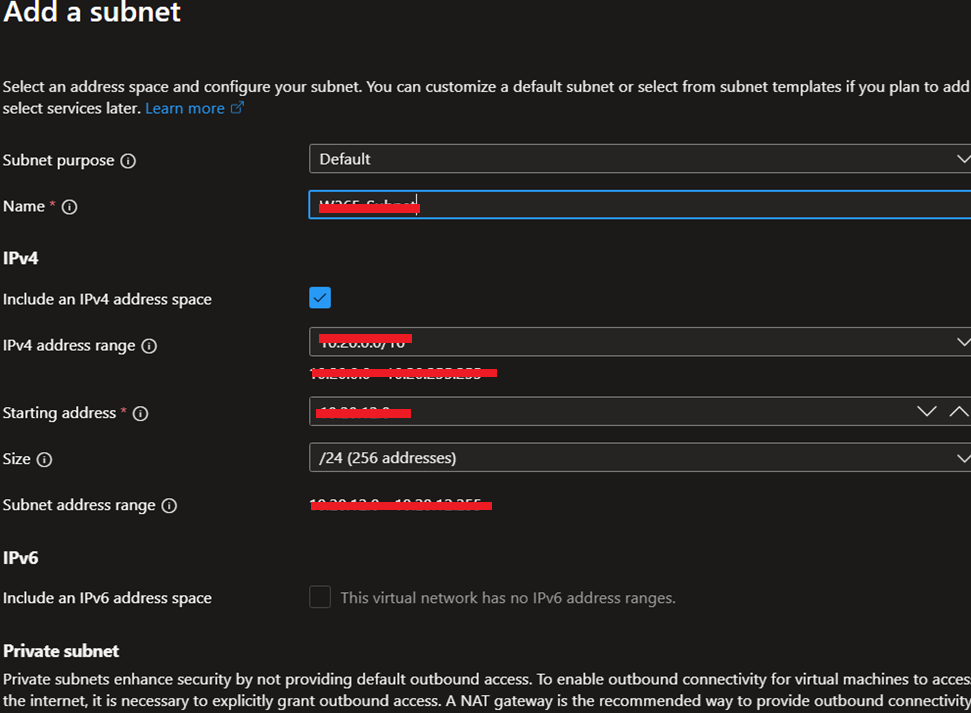
Figure 1 – Adding a dedicated subnet (Azure portal → Virtual network → Subnets → + Subnet).
- Set Subnet purpose to Default.
- Give the subnet a clear Name (e.g. W365-Subnet).
- Define the IPv4 address range and Size so at least half the addresses stay free for growth and DR.
- Leave Private subnet / outbound access settings as required by your organization’s egress design, then select Add.
Step 2 — Open the Azure network connection blade
In the Microsoft Intune admin center, go to Devices › Provisioning Cloud PCs › Azure network connection, then select Create.
Step 3 — Choose the connection type
Select Hybrid Microsoft Entra Join (or Microsoft Entra Join for a cloud-only connection) and continue to the Network details page.
Step 4 — Network details
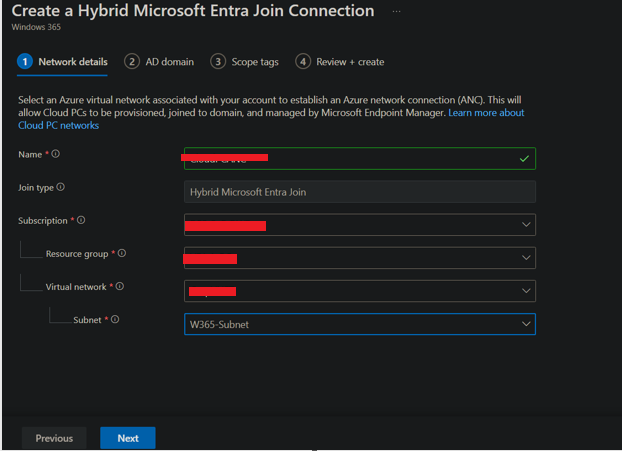
Figure 2 – Network details page of the Create a Hybrid Microsoft Entra Join Connection wizard.
- Name — a unique, descriptive name for the ANC (e.g. CloudPCANC).
- Subscription, Resource group, Virtual network, Subnet — select the subnet created in Step 1.
- Select Next once all fields show a green check mark.
Step 5 — AD domain (Hybrid Join only)
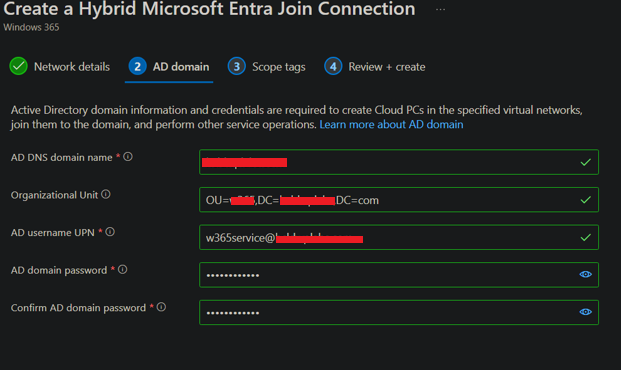
Figure 3 – AD domain page, used to join Cloud PCs to the on-premises Active Directory domain.
- AD DNS domain name — the DNS name of the target Active Directory domain.
- Organizational Unit — the OU that will receive the Cloud PC computer objects (optional, but recommended).
- AD username UPN and AD domain password — credentials for the domain-join service account from Section 2.4.
- Confirm the password and select Next.
Tip: If your environment uses parent/child domains, specify the exact domain where Cloud PCs should land — not just the forest root.
Step 6 — Scope tags
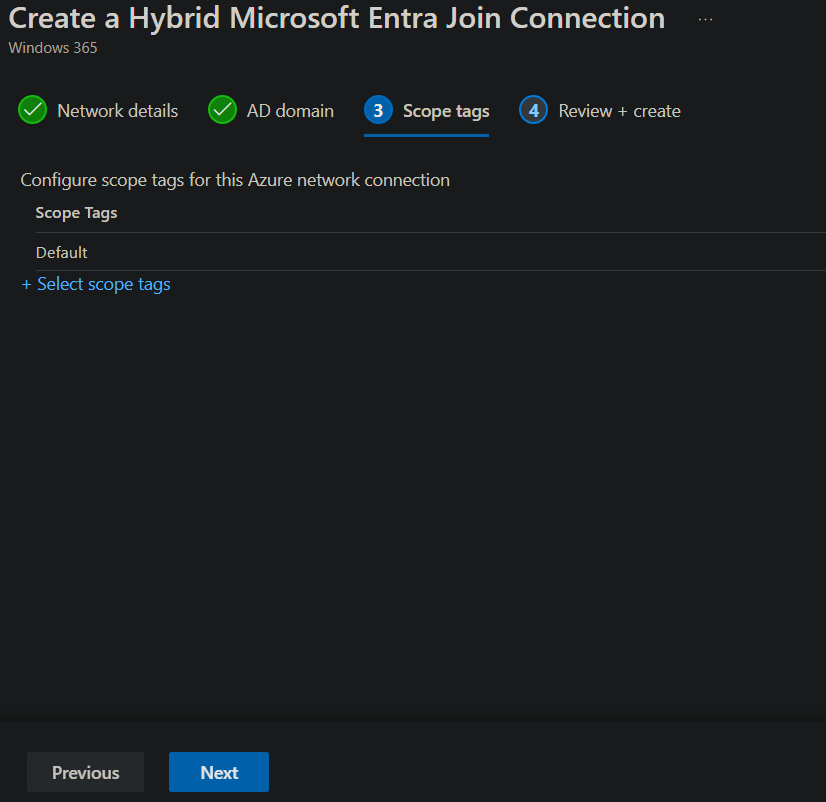
Figure 4 – Scope tags page.
Scope tags control which Intune role-based administrators can see and manage this ANC. Select + Select scope tags to assign one, or leave Default and select Next.
Step 7 — Review + create
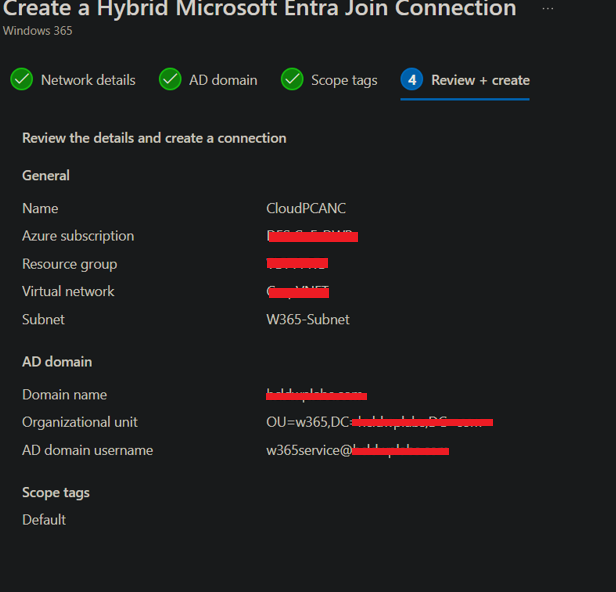
Figure 5 – Review + create summary before provisioning the connection.
Confirm every value — subscription, resource group, virtual network, subnet, domain name, OU, and service account — then select Create. These settings become read-only once the ANC is in active use, so this is the last point to correct a typo without deleting and recreating the connection.
4. Validating the connection: automated health checks
As soon as the ANC is created, Windows 365 runs a series of automated health checks against the subscription, network, and (for hybrid join) the Active Directory domain. The connection cannot be used to provision Cloud PCs until every required check passes.
4.1 Checks in progress
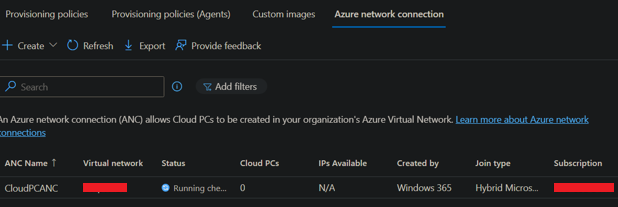
Figure 6 – The Azure network connection list showing a connection with checks still running.
Open Devices › Provisioning Cloud PCs › Azure network connection and watch the Status column — it moves from Running checks to either Checks succeeded or an error state.
4.2 What each check validates
| Check | What it validates |
|---|---|
| Microsoft Entra device sync | Cloud PC device objects are syncing correctly into Microsoft Entra ID. |
| Azure tenant readiness | The Azure tenant is correctly linked and reachable for provisioning. |
| Azure virtual network readiness | The selected vNet exists, is accessible, and is correctly configured. |
| Azure subnet IP address usage | The subnet has sufficient free IP addresses for provisioning and DR. |
| Intune enrollment restrictions allow Windows enrollment | Tenant enrollment restrictions permit Windows (Cloud PC) enrollment. |
| First party app permissions on subscription / resource group / virtual network | The three roles in Section 2.2 are correctly applied at each scope. |
| DNS can resolve Active Directory domain | (Hybrid join) The vNet’s DNS settings can resolve the AD domain name. |
| Active Directory domain join | (Hybrid join) The service account can join computer objects to the target OU. |
| Single sign-on configuration | SSO prerequisites for the Cloud PC are in place. |
| Endpoint connectivity | Required Windows 365 service endpoints are reachable, unblocked by firewall/proxy. |
| Localization language package readiness | Required language packages are available for provisioning. |
| UDP connection check | UDP connectivity needed for optimal Remote Desktop performance. |
4.3 Troubleshooting a failed health check
It is common for the first validation pass to show errors immediately after creation, particularly on the permission-related checks — Azure RBAC role assignments can take several minutes to propagate.
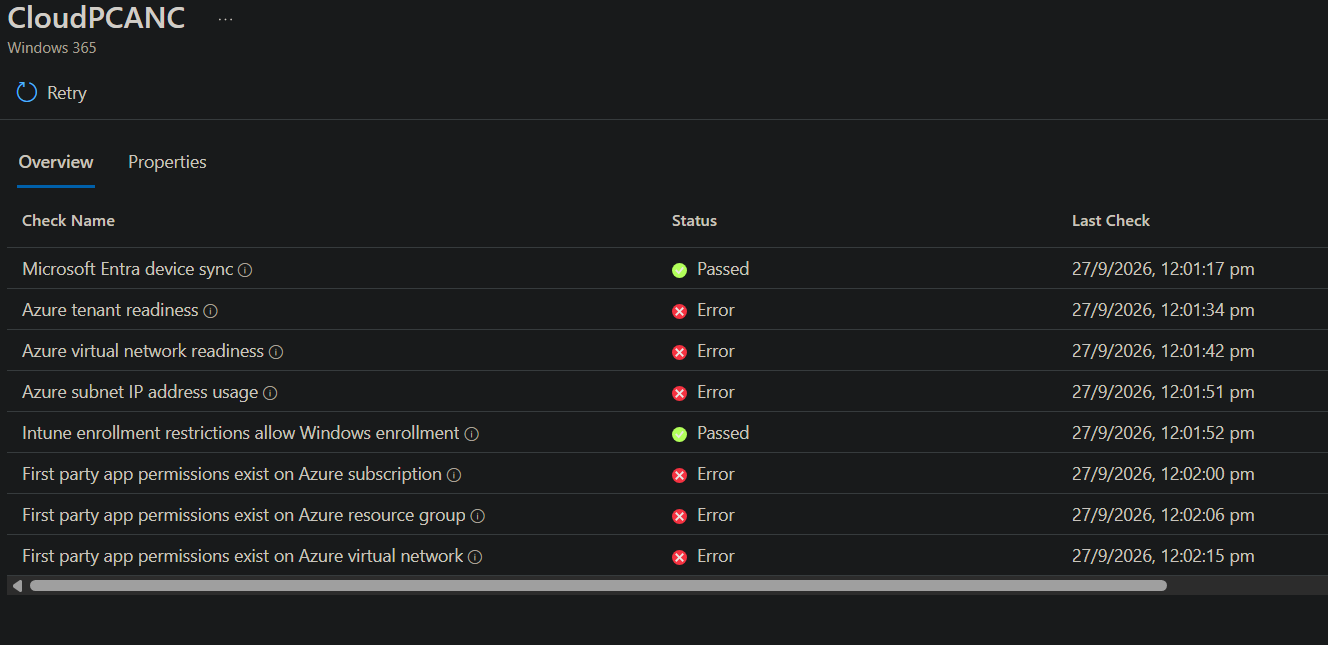
Figure 7 – Example of a failed first pass: Azure tenant readiness, virtual network readiness, subnet IP usage, and the three “first party app permission” checks all show Error.
| Failing check | Likely cause | Fix |
|---|---|---|
| Azure tenant / virtual network readiness | RBAC role assignment has not yet propagated, or the vNet/subnet was changed after creation. | Wait 10–15 minutes, then select Retry on the ANC overview page. |
| Azure subnet IP address usage | Subnet is too small or already heavily utilized. | Expand the subnet or choose a larger one, then retry. |
| First party app permissions (subscription / resource group / vNet) | The Windows 365 service principal could not be granted Reader / Network Interface Contributor / Network User, often because the signed-in account lacked Owner/User Access Administrator. | Manually assign the three roles from Section 2.2 at the correct scope, or re-run the wizard signed in with sufficient rights, then retry. |
| DNS can resolve Active Directory domain | vNet DNS servers are not set to servers that can resolve the AD domain. | Update the vNet’s custom DNS settings to point at AD-aware DNS servers, then retry. |
| Active Directory domain join | Service account credentials are incorrect, locked, or lack join permission on the target OU. | Verify the account’s password and delegated permissions on the OU, then retry. |
Select Retry on the ANC’s Overview page after addressing the cause — there is no need to delete and recreate the connection.
4.4 Checks succeeded
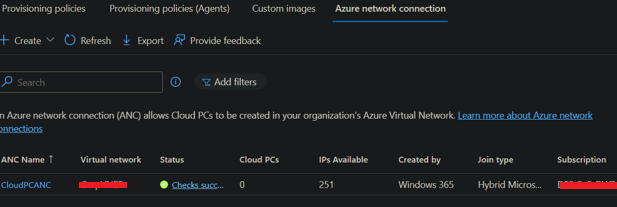
Figure 8 – The Azure network connection list after remediation, showing Checks succeeded and available IP count.
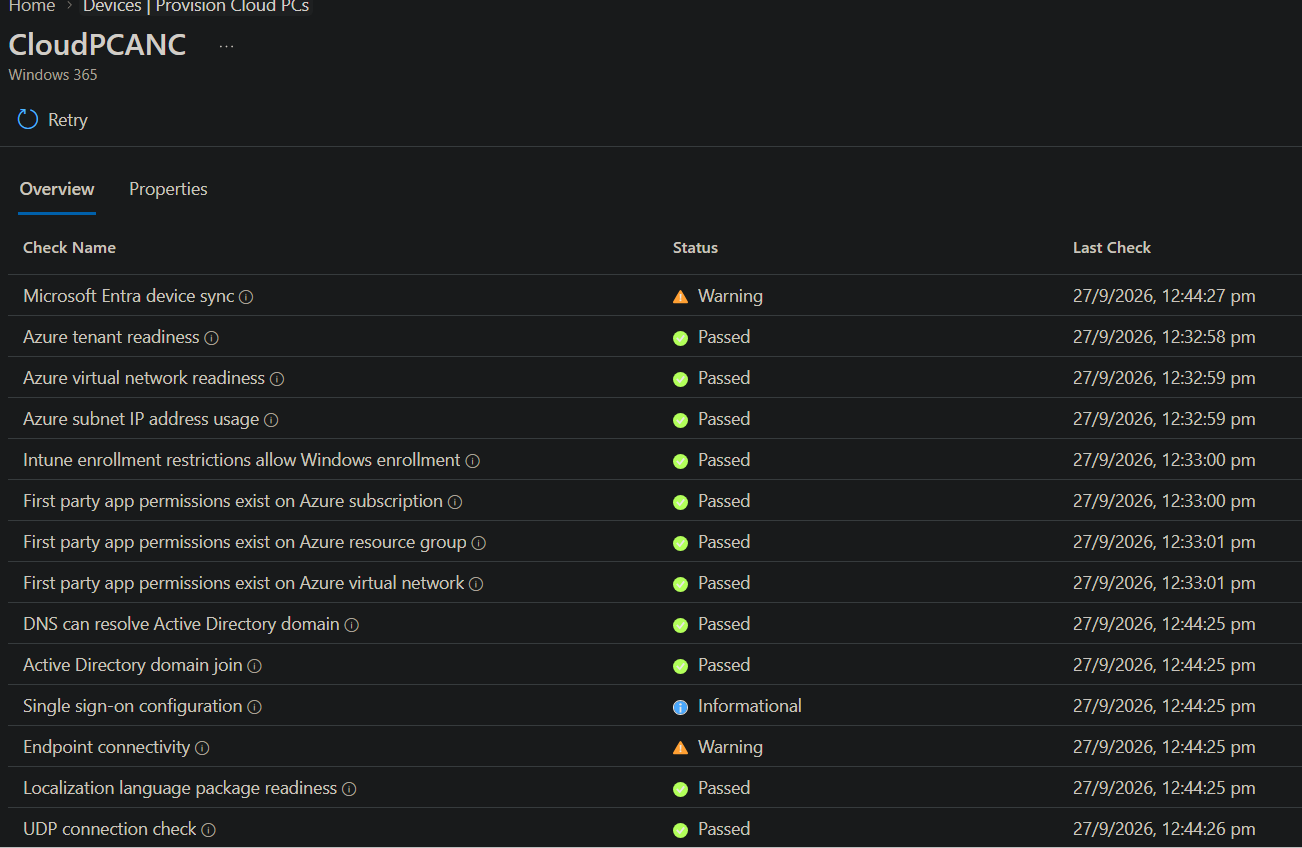
Figure 9 – Full health check detail: all blocking checks Passed. Microsoft Entra device sync and Endpoint connectivity show Warning, and Single sign-on configuration shows Informational — none of these block the ANC from being used.
Note: A Warning or Informational result does not block the ANC from being used, but it is worth reviewing — for example, an Endpoint connectivity warning can indicate a firewall rule that will degrade, rather than block, the end-user experience.
5. Next steps
- Create or update a Provisioning policy and select this ANC as its network connection, so new Cloud PCs are provisioned into your vNet.
- Assign a Windows 365 license and the provisioning policy to the target users or group.
- If you manage multiple regions or domains, repeat this process for each additional ANC — remember only Reader is required on the subscription after the first successful ANC.
- Review Section 4.2 periodically; Windows 365 re-runs these checks on a schedule and will flag the ANC if a dependency (e.g. a changed NSG rule or expired service account password) breaks it after the fact.
6. References
- Microsoft Learn – Azure network connection (ANC) overview and creation steps: learn.microsoft.com/windows-365/enterprise
- Microsoft Learn – Windows 365 network requirements: learn.microsoft.com/windows-365/enterprise/requirements-network
- Microsoft Learn – Windows 365 health checks reference: learn.microsoft.com/windows-365/enterprise/health-checks
- whyazure.in – Windows 365 deployment and configuration walkthroughs by Aavisek Choudhury.

How to Create a Conditional Access Policy for Windows 365 using the Microsoft Graph API
Windows 365 Link: A Seamless Cloud PC Experience

Windows 365 and Azure Virtual Desktop Gateway IP Address Lookup Script
About Author
