Setting Up Microsoft Intune Remote Help on Azure Virtual Desktop
Remote Help lets your helpdesk team screen-share, chat with, and (with the right permission) take elevated control of a user’s session — including AVD multi-session hosts where several users can be active on the same VM at once.
This is a two-part walkthrough. Part 1 covers enabling Remote Help at the tenant level and doing a manual install on an AVD session host, plus a PowerShell script to automate that install through an Azure VM extension. Part 2 covers deploying Remote Help at scale through Intune and locking it down with Conditional Access.

Picture Credit: Gemini AI
Part 1: Manual Installation
Step 1: Enable Remote Help for the tenant
Before Remote Help can be used anywhere in the tenant, it has to be turned on centrally.
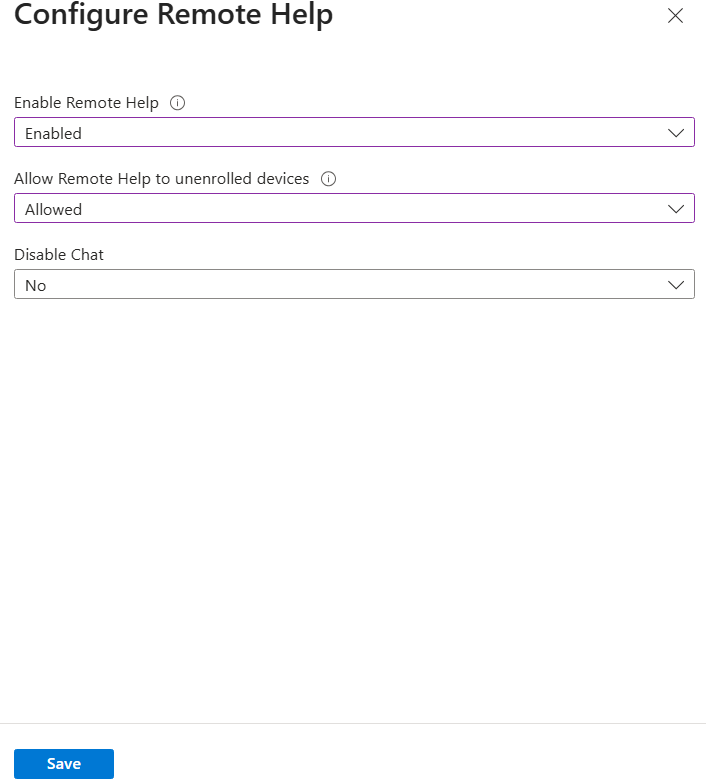
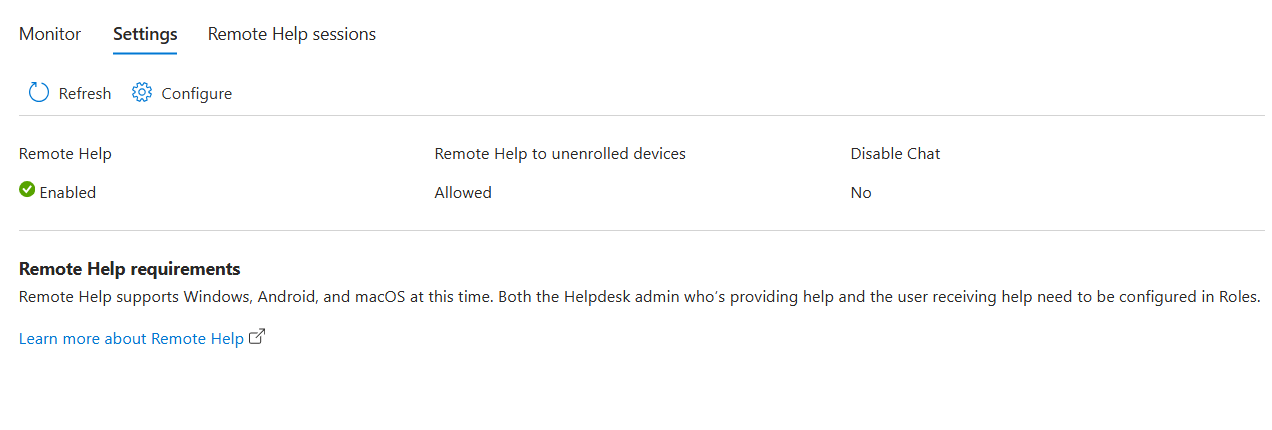
Go to the Microsoft Intune admin center → Tenant administration → Remote Help → Settings, and set Enable Remote Help to Enabled. This is where you’d also decide whether to allow Remote Help on unenrolled devices and whether to disable in-session chat.
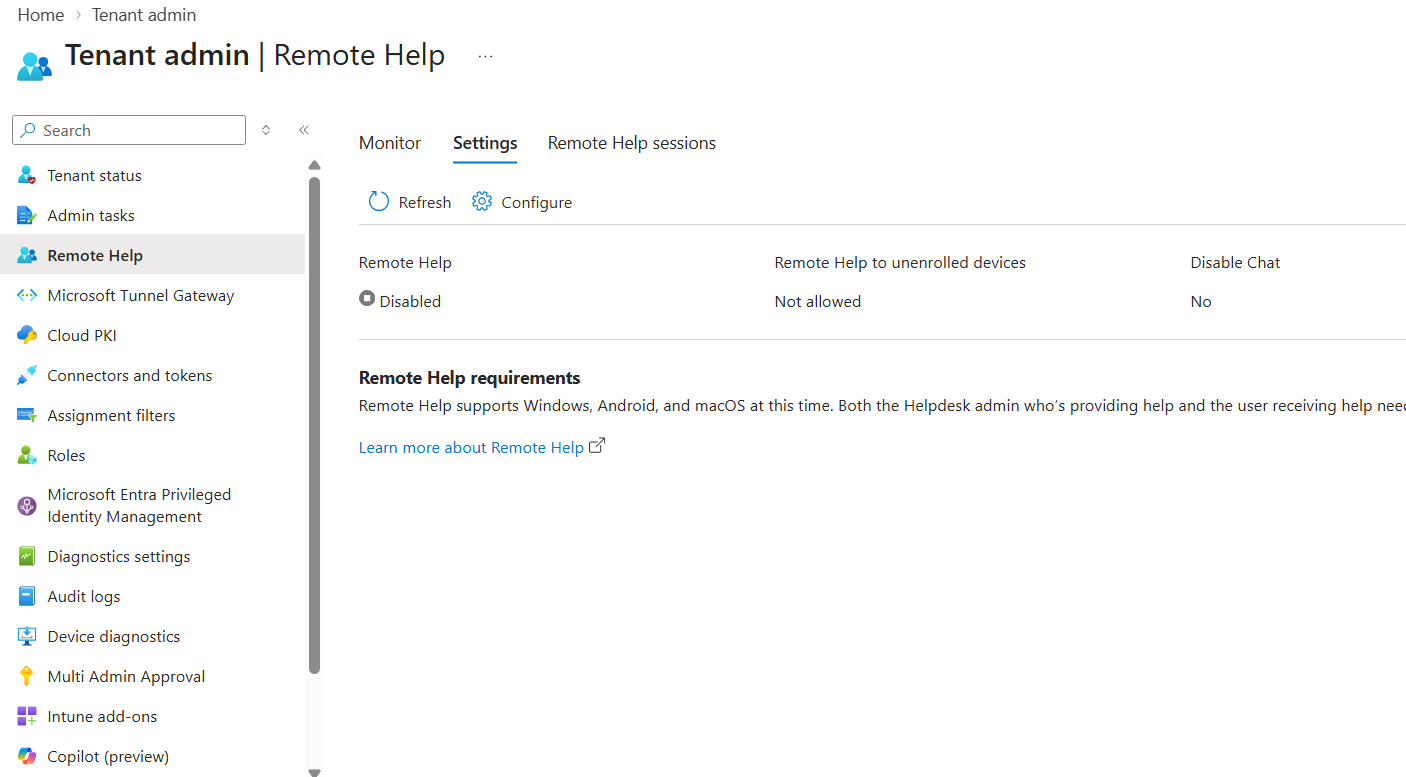
Enable Remote Help at the tenant level
New license activations can take anywhere from 30 minutes to 8 hours to fully take effect, so don’t be surprised if a test session still reports “Remote Help isn’t enabled” right after you save this.
Step 2: Assign licensing
Remote Help requires licensing (Intune Suite, or the standalone Remote Help add-on) assigned to both the helper and the sharer accounts.
Assign Remote Help licensing to users
Step 3: Confirm helpdesk permissions
Remote Help uses Intune RBAC to control who can act as a helper and what they’re allowed to do (screen share only vs. full control vs. elevation). The built-in Help Desk Operator role already has what’s needed — assign it to your support staff, or build a custom role if you want tighter scoping.
Assign RBAC role for Remote Help
Step 4: Log in to the AVD VM and download Remote Help
Once the tenant-level setup is done, log in to the AVD session host and grab the installer directly from Microsoft: aka.ms/downloadremotehelp
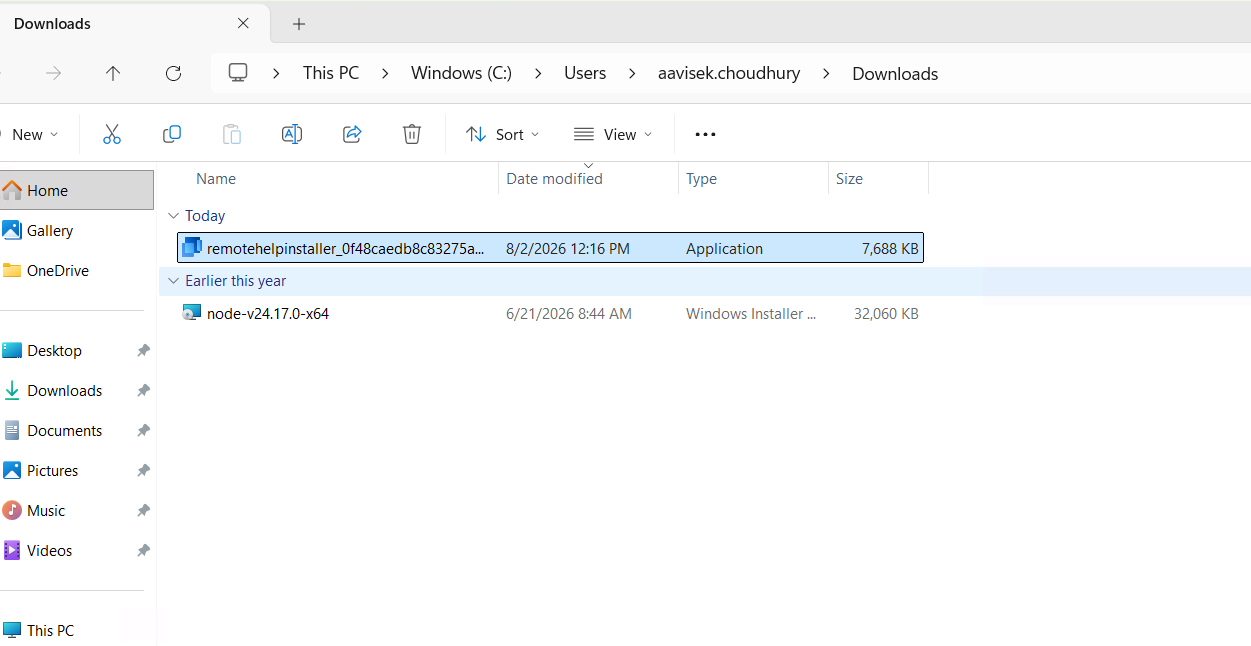
Remote Help download page
Step 5: Run the installer
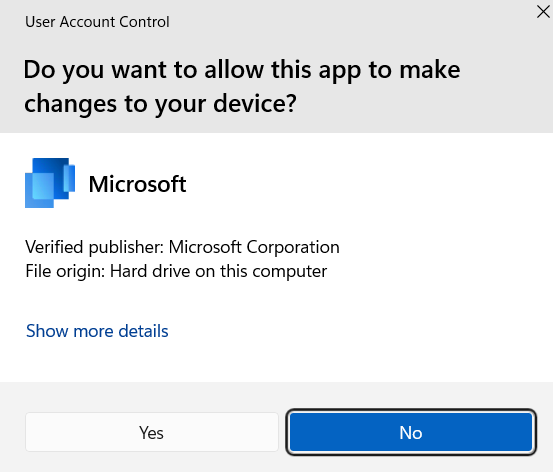
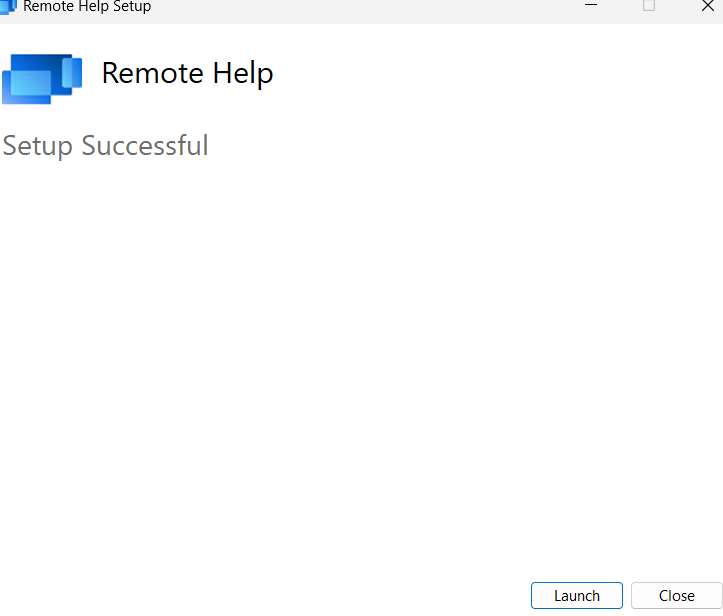
Run the downloaded remotehelpinstaller.exe. For a manual, interactive install you can just double-click it and step through the wizard.
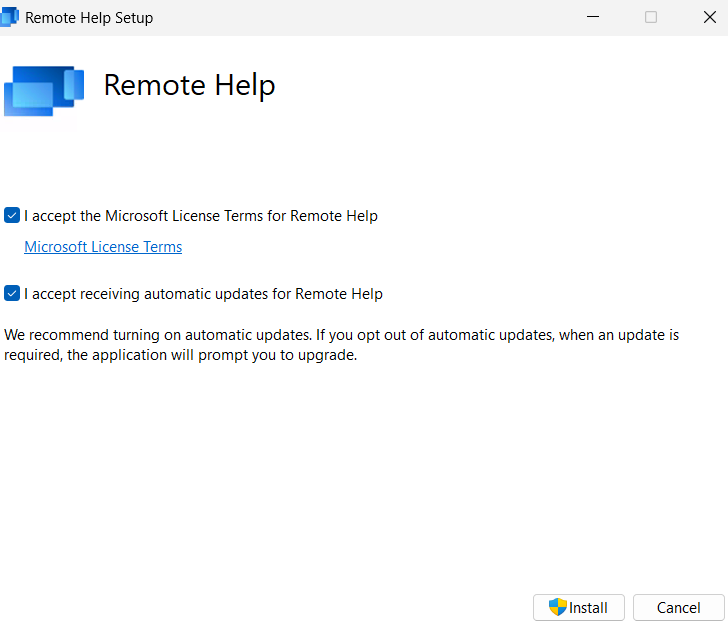
Remote Help installer running
Step 6: Launch Remote Help
Once installed, launch the Remote Help app from the Program Files -> Remote Help
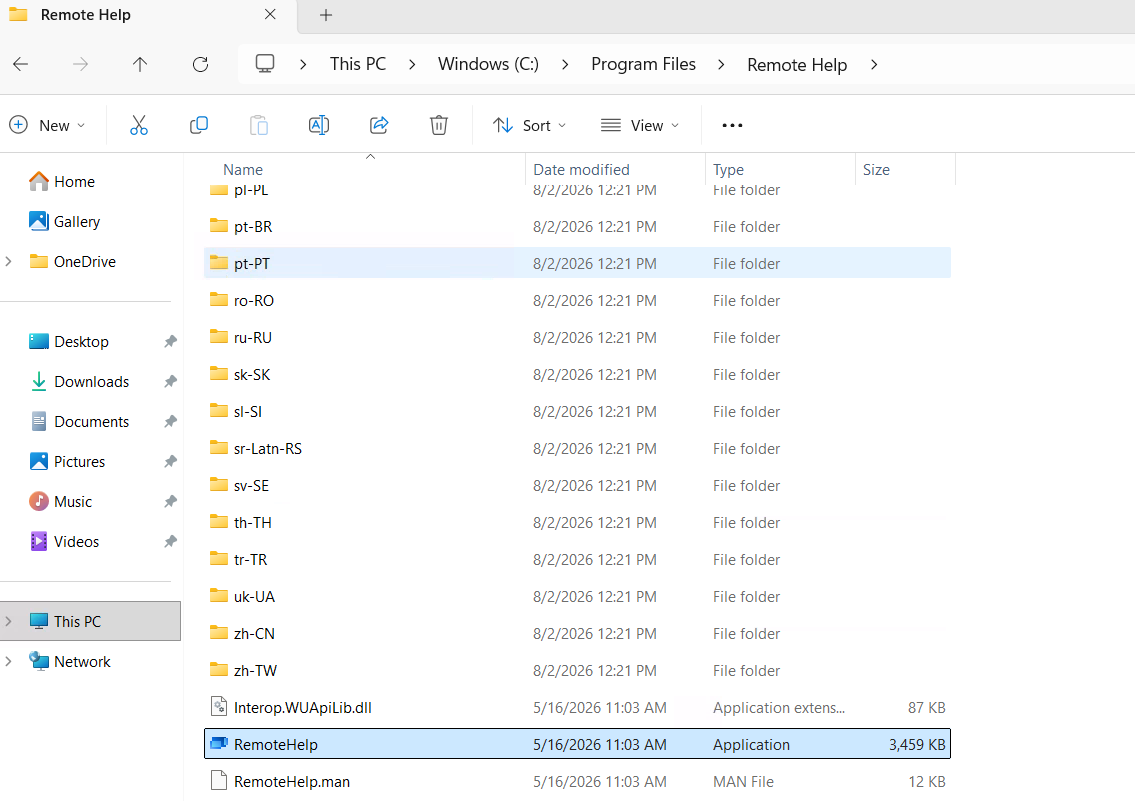
Remote Help app launch
Step 7: Sign in
Sign in with your organizational account to authenticate Remote Help to your tenant.
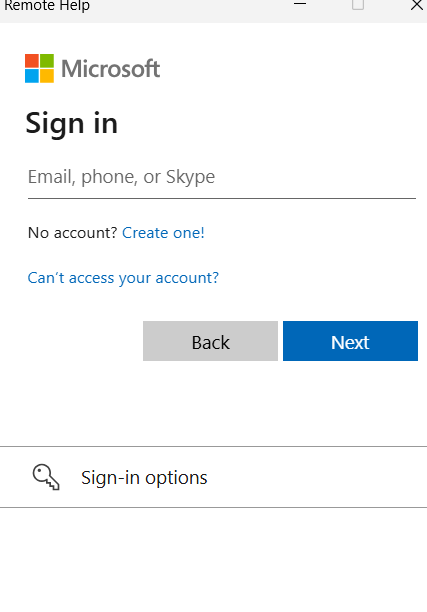
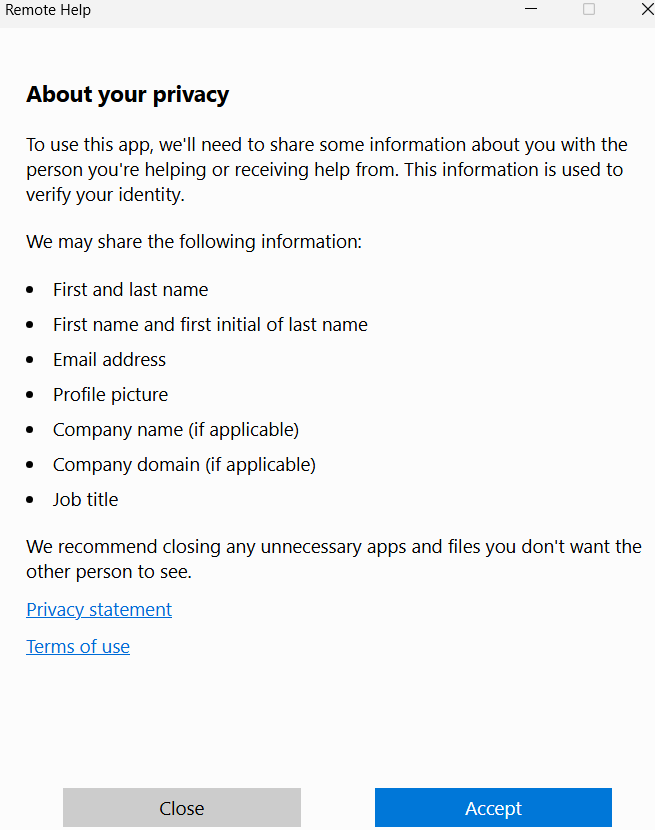
Remote Help sign-in screen
Step 8: Get a security code (helper side, AVD scenario)
Because an AVD host can have multiple users on it at once, the helper doesn’t launch a session against the VM directly — instead, under Give help, select Get a security code. Remote Help generates a code that you pass to the user on a call, chat, or email, and they enter it in their own Remote Help instance to connect to you.
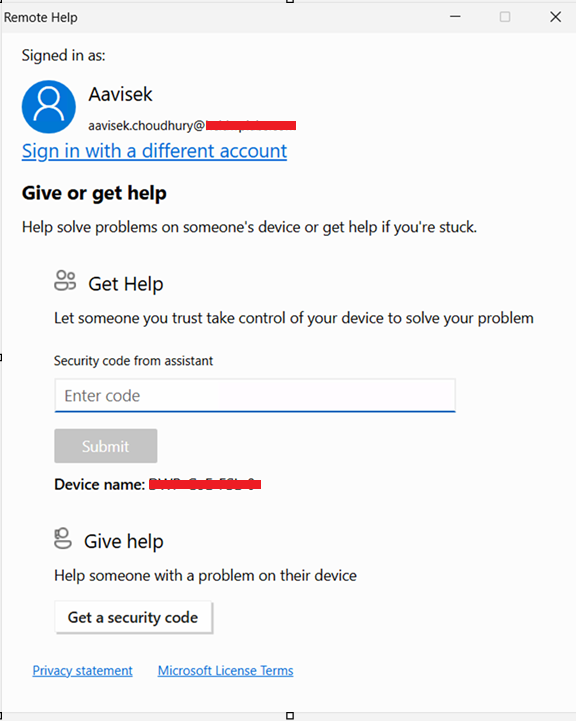
Getting a security code in Remote Help
Step 9: Connect and verify identity
Once the sharer enters the code, both sides see each other’s verified identity (name, job title, company, verified domain) before the sharer approves screen sharing or full control.
That’s the full manual flow — good for a one-off install and test, but not something you want to repeat by hand across every host in a pool.
Automating the install with an Azure VM extension
Since AVD session hosts are Azure VMs, you can push the install using either the Run Command feature (one-time, ad hoc) or the Custom Script Extension (persists as a VM extension, useful if you want it re-applied on redeploys). Both execute as SYSTEM, so the install runs elevated without you needing to RDP in.
Script — save this as Install-RemoteHelp.ps1:
<#
.SYNOPSIS
    Downloads and silently installs Microsoft Intune Remote Help on an AVD session host.
    Designed to be pushed to the VM via the Azure VM Run Command feature or the
    Custom Script Extension.

.NOTES
    Run as SYSTEM/local admin (both the Run Command and Custom Script Extension do this by default).
#>

$ErrorActionPreference = "Stop"

$downloadUrl   = "https://aka.ms/downloadremotehelp"
$installerPath = "$env:TEMP\remotehelpinstaller.exe"
$logPath       = "$env:ProgramData\RemoteHelpInstall.log"

function Write-Log {
    param([string]$Message)
    $timestamp = Get-Date -Format "yyyy-MM-dd HH:mm:ss"
    "$timestamp  $Message" | Tee-Object -FilePath $logPath -Append
}

try {
    Write-Log "Starting Remote Help download from $downloadUrl"

    Invoke-WebRequest -Uri $downloadUrl -OutFile $installerPath -UseBasicParsing

    if (-not (Test-Path $installerPath)) {
        throw "Download failed - installer not found at $installerPath"
    }

    Write-Log "Download complete. Starting silent install."

    # acceptTerms=1 is required for unattended install.
    # Add enableAutoUpdates=0 if you want to manage updates yourself instead of
    # letting Remote Help auto-update.
    $process = Start-Process -FilePath $installerPath `
        -ArgumentList "/quiet", "acceptTerms=1" `
        -Wait -PassThru

    if ($process.ExitCode -ne 0) {
        throw "Installer exited with code $($process.ExitCode)"
    }

    Write-Log "Remote Help installed successfully. Exit code: $($process.ExitCode)"

    $exePath = "$env:ProgramFiles\Remote Help\RemoteHelp.exe"
    if (Test-Path $exePath) {
        $version = (Get-Item $exePath).VersionInfo.FileVersion
        Write-Log "Installed version: $version"
    } else {
        Write-Log "WARNING: RemoteHelp.exe not found at expected path after install."
    }
}
catch {
    Write-Log "ERROR: $($_.Exception.Message)"
    throw
}
finally {
    if (Test-Path $installerPath) {
        Remove-Item $installerPath -Force -ErrorAction SilentlyContinue
    }
}
Option A — Run Command (one-off, good for testing or a handful of hosts)
Invoke-AzVMRunCommand `
    -ResourceGroupName "rg-avd-hostpool" `
    -VMName "avd-host-01" `
    -CommandId "RunPowerShellScript" `
    -ScriptPath ".\Install-RemoteHelp.ps1"
To run it against every host in a pool, loop over the VM names:
$vms = @("avd-host-01", "avd-host-02", "avd-host-03")

foreach ($vm in $vms) {
Write-Host "Installing Remote Help on $vm..."
Invoke-AzVMRunCommand `
-ResourceGroupName "rg-avd-hostpool" `
-VMName $vm `
-CommandId "RunPowerShellScript" `
-ScriptPath ".\Install-RemoteHelp.ps1"
}
Option B — Custom Script Extension (persists as a VM extension)
Set-AzVMCustomScriptExtension `
    -ResourceGroupName "rg-avd-hostpool" `
    -VMName "avd-host-01" `
    -Location "eastus" `
    -FileUri "https://<yourstorageaccount>.blob.core.windows.net/scripts/Install-RemoteHelp.ps1" `
    -Run "Install-RemoteHelp.ps1" `
    -Name "InstallRemoteHelp"
Set-AzVMCustomScriptExtension needs the script hosted somewhere reachable by the VM (a storage account with a SAS-secured blob works well) since it pulls it down rather than executing local content directly like Run Command does.
Either approach is a reasonable stand-in for a golden-image install if you’re patching Remote Help onto hosts that are already deployed, but for new host pools baking Remote Help into the master image before sysprep is usually less overhead long-term.
Part 2: Intune-Based Deployment and Conditional Access
Manual installs and VM extension scripts work, but they don’t give you centralized update management or reporting. For that, deploy Remote Help as a managed app through Intune.
Deploy as a Win32 app
1. Download the installer from aka.ms/downloadremotehelp and repackage remotehelpinstaller.exe as a .intunewin file using the Win32 Content Prep Tool.
2. In Intune, add a new Windows app (Win32):
- Install command: remotehelpinstaller.exe /quiet acceptTerms=1
- Uninstall command: remotehelpinstaller.exe /uninstall /quiet acceptTerms=1
- Add enableAutoUpdates=0 to the install command if you want to control updates yourself instead of relying on Remote Help’s built-in auto-update.
3. Detection rule: File → path C:\Program Files\Remote Help → file RemoteHelp.exe → String (version) ≥ the version you’re deploying.
- Get the exact version from a test install with:
(Get-Item "$env:ProgramFiles\Remote Help\RemoteHelp.exe").VersionInfo
4. Assignment: target the device group containing your AVD session hosts (Remote Help is applicable to device groups, not user groups).
Alternatively, Remote Help is also available prepackaged in the Enterprise App Catalog, which skips the manual .intunewin repackaging step if you don’t need custom install parameters.
If firewall rules are required in your environment, allow:
- C:\Program Files\Remote help\RemoteHelp.exe
- C:\Program Files\Remote help\RHService.exe
- C:\Program Files\Remote help\RemoteHelpRDP.exe
Set up Conditional Access for Remote Help
Locking Remote Help behind Conditional Access means helpers and sharers have to meet your CA requirements (MFA, compliant device, trusted location, etc.) before a session can even start.
1. Open PowerShell as admin and install the Microsoft Graph module if you don’t already have it:
Install-Module Microsoft.Graph -Scope CurrentUser
2. Sign in with an account that can consent to the required scope:
Connect-MgGraph -Scopes "Application.ReadWrite.All"
3. Create the service principal for the Remote Assistance Service:
New-MgServicePrincipal -AppId "1dee7b72-b80d-4e56-933d-8b6b04f9a3e2"
This registers RemoteAssistanceService (the backend service behind Remote Help) as an app in your tenant so it can be targeted by a Conditional Access policy.
4. Sign out:
Disconnect-MgGraph
5. In Entra ID → Conditional Access, open the policy you want to apply (or create a new one), go to Target resources → Resources (formerly cloud apps), and include the RemoteAssistanceService app (app ID 1dee7b72-b80d-4e56-933d-8b6b04f9a3e2) in the policy’s scope.
From here, Remote Help sessions are subject to whatever conditions that CA policy enforces — same as any other cloud app in your tenant.
With both parts done, you’ve got Remote Help enabled, installed (manually or at scale), and gated behind Conditional Access — ready to use for helpdesk-assisted troubleshooting on your AVD hosts.

Hardening Azure Virtual Desktop the Right Way

Step by step guide to Disable or Enable Drive Redirection in AVD Session Host with Intune

Custom Image Template for Azure Virtual Desktop (AVD)
About Author
