Fixing Azure Virtual Desktop Error 0x3000047- A Real-World RDAgentBootLoader Saga Part- I
If you manage Azure Virtual Desktop (AVD) long enough, you’ll eventually hit a session host that looks perfectly healthy in the Azure portal — VM running, network fine, disk attached — yet refuses to let anyone connect. Here’s a walkthrough of one such incident, the error code behind it, and the troubleshooting path that eventually got the host back online.
The symptom
A user tries to launch their AVD session and gets stopped cold:
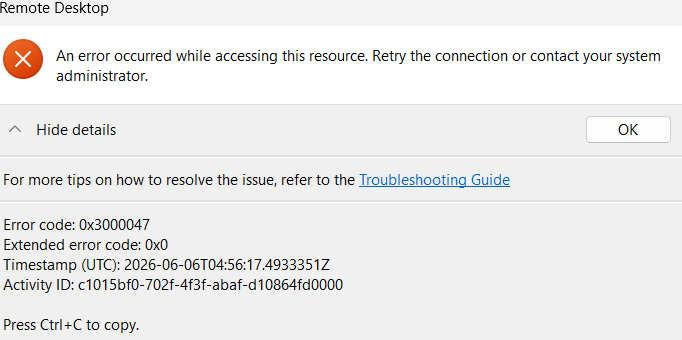
The connection error shown to the end user, with error code 0x3000047.
Over in the Azure portal, the host pool tells a consistent story. The session host shows a health state of Unavailable, with a note that VM status information isn’t available — which the portal attributes to the VM being deallocated, hibernating, mid-image-update, or blocked by a networking issue.
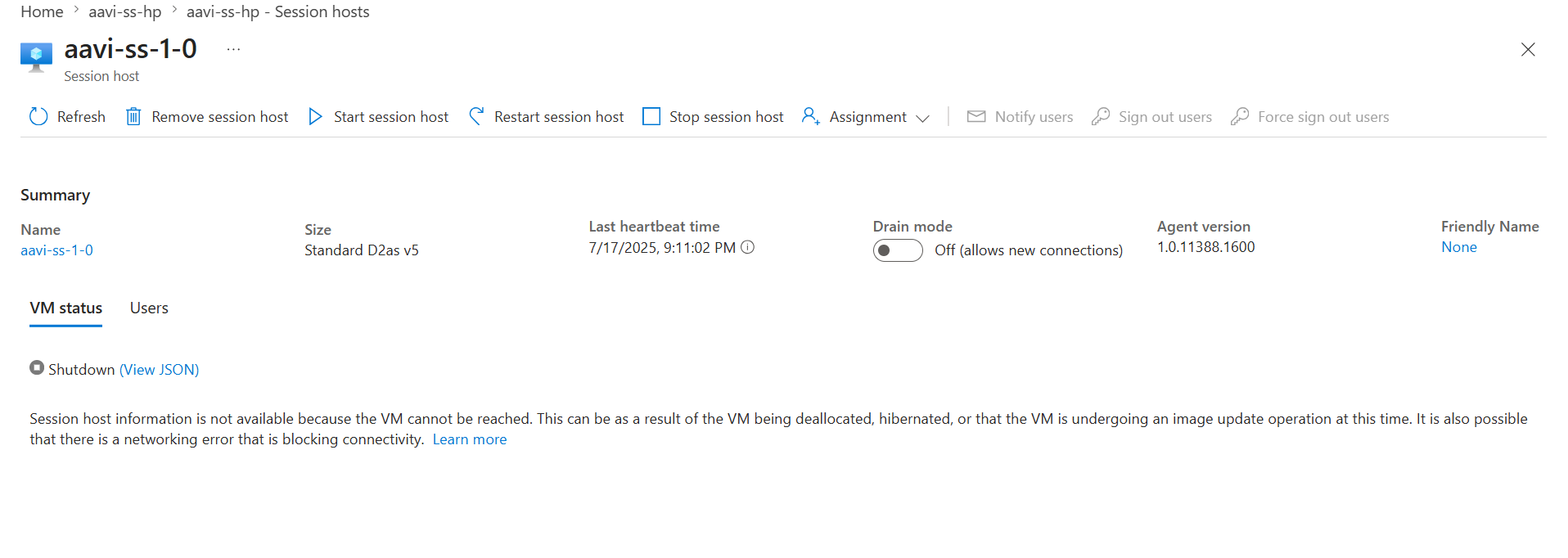
The session host blade — VM status unavailable, agent version visible, drain mode off.
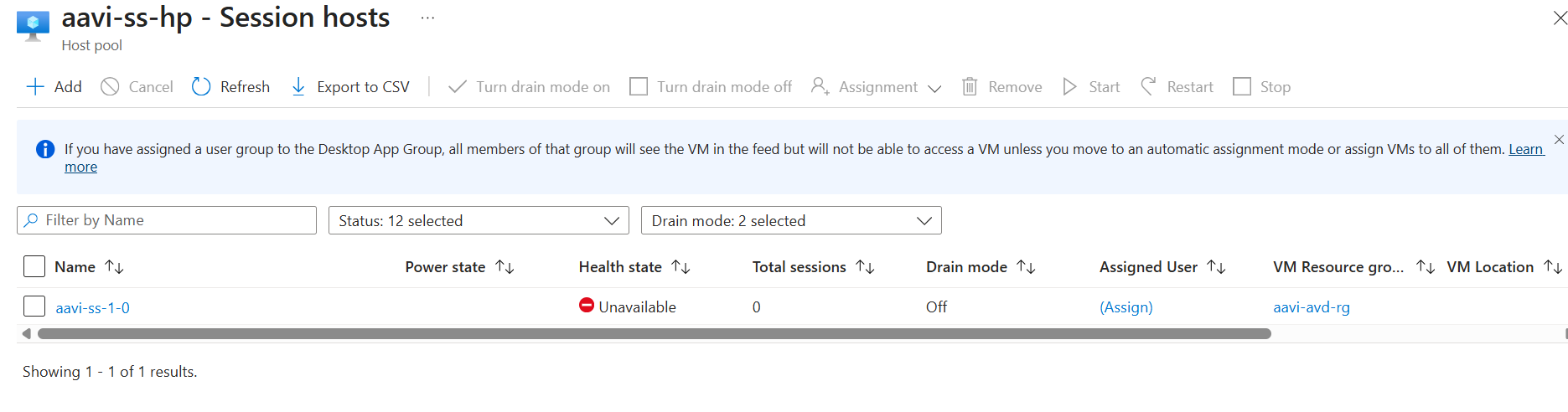
The host pool’s session host list shows the same host as Unavailable.
None of the portal’s suggested causes turned out to be the actual issue here: the VM itself was running normally, with zero active, disconnected, or pending sessions and “Can’t connect: 1” on the host pool’s overview tile.
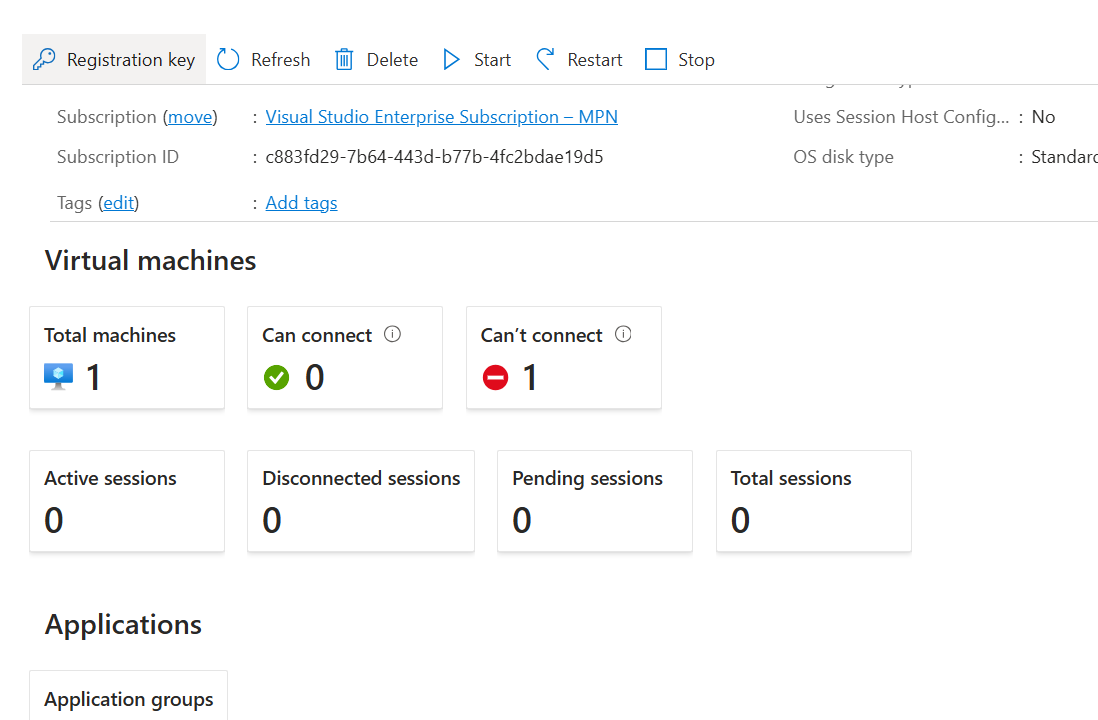
Host pool overview: one total machine, zero that can connect.
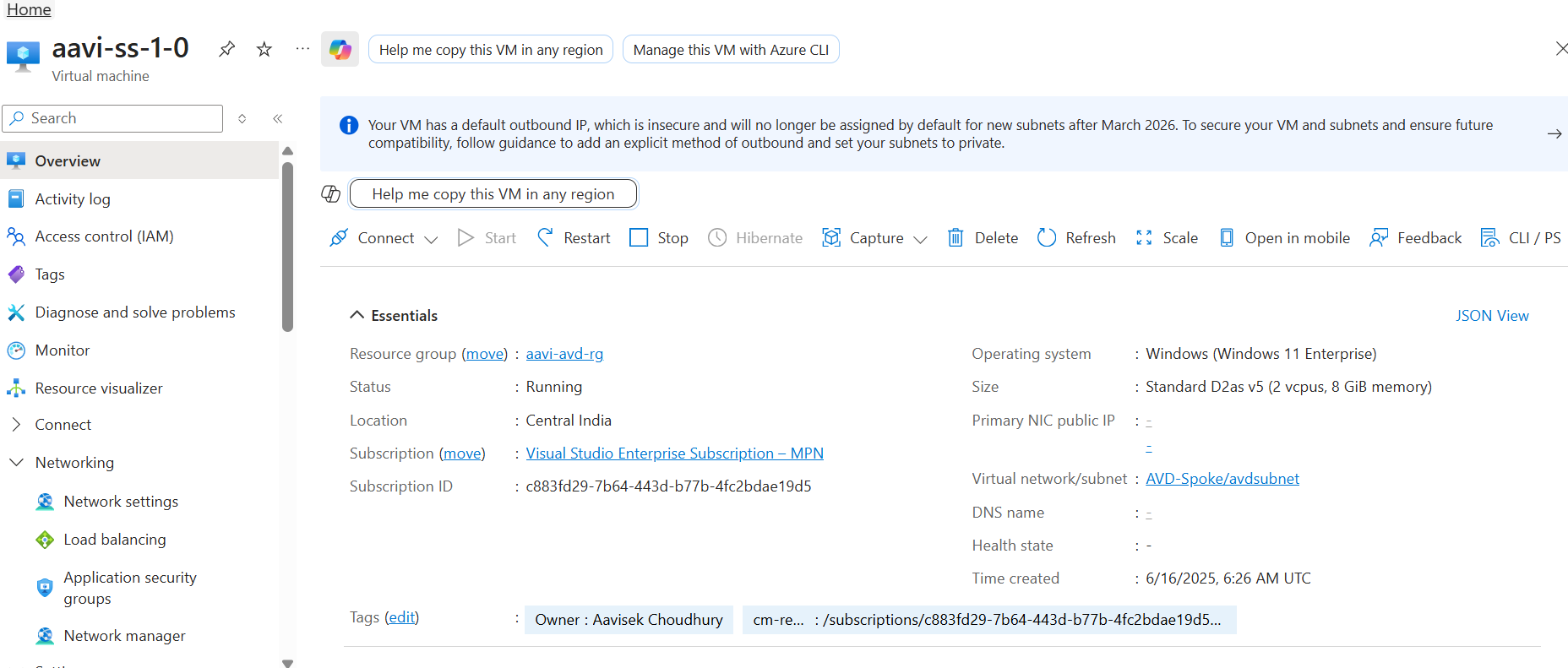
The VM’s own overview blade — status: Running, no obvious problem at the infrastructure level.
That combination — VM up, agent unreachable — points squarely at the AVD agent stack running inside the VM, not the VM itself.
First diagnosis: a service that won’t stay running
AVD session hosts rely on two Windows services:
- RDAgent – the core Remote Desktop Services Infrastructure Agent
- RDAgentBootLoader – the loader that keeps RDAgent alive and talks to the AVD control plane
Connecting to the VM directly and checking service status told the real story:
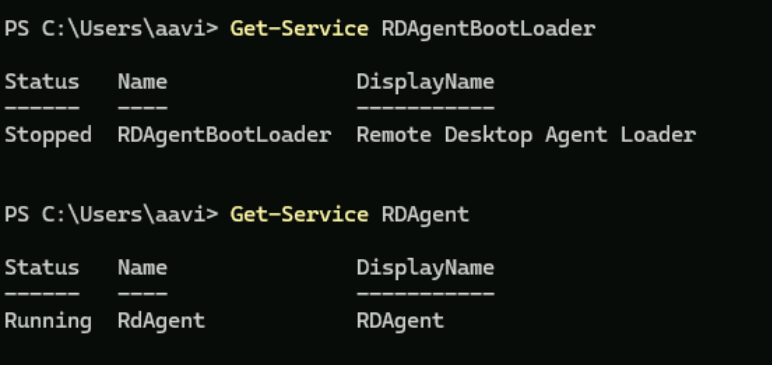
RDAgentBootLoader is Stopped while RDAgent is Running.
A plain Start-Service brought it up only for it to immediately flip back to Stopped:
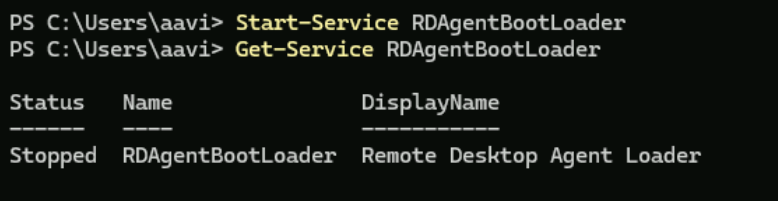
Starting the service doesn’t stick — it reports Stopped again right away.
Checking the Application event log for anything mentioning the loader showed it cycling through a stop event almost as soon as it started — confirmation that something was actively killing the service rather than it crashing on its own:
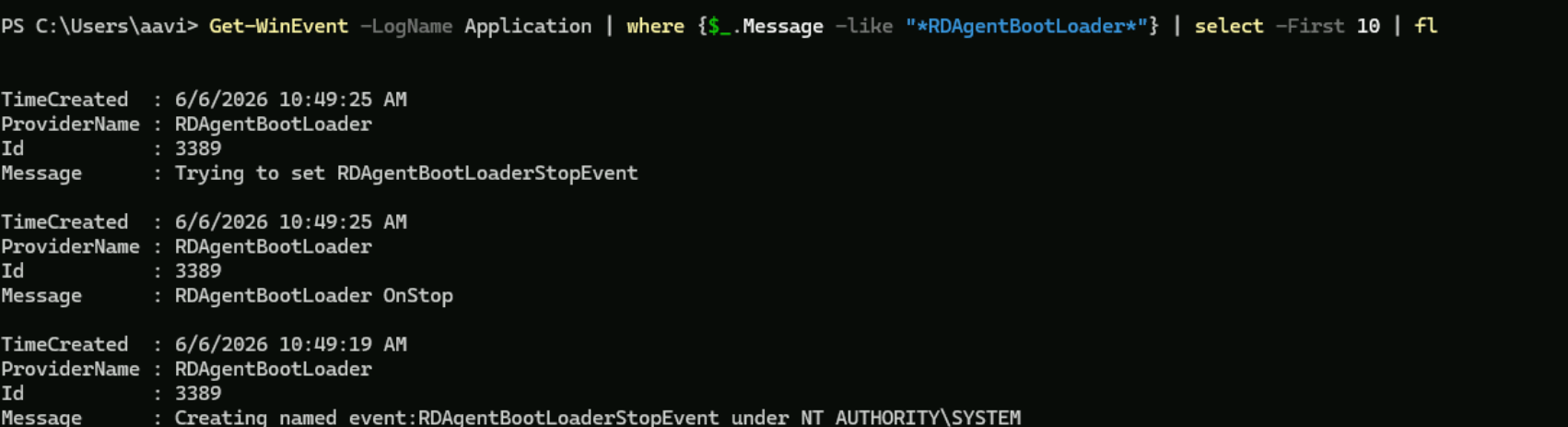
Event log entries show RDAgentBootLoader setting its own stop event moments after starting.
Interestingly, falling back to the classic net start command got it running and it actually reported success this time:

Start-Service -Verbose confirms the operation is being attempted.

net start succeeds where Start-Service alone kept getting reverted.
That’s a useful sanity check, but a service that needs to be manually nudged back to life isn’t a fix — it’s a symptom of a corrupted or mismatched agent install underneath. The right move is to remove the agent entirely and put a clean copy back.

Before kicking off the reinstall: confirming RDAgentBootLoader is back to Stopped.
The clean-reinstall script
The standard remediation for a misbehaving AVD agent is to fully remove it, clear out leftover files, and reinstall from fresh MSIs with a new registration token. The script looks like this:
Stop-Service RDAgentBootLoader,RDAgent -ErrorAction SilentlyContinue;
Get-WmiObject Win32_Product | Where-Object {$_.Name -like "*Remote Desktop Agent*"} |
ForEach-Object {$_.Uninstall()};
Remove-Item "C:\Program Files\Microsoft RDInfra" -Recurse -Force -ErrorAction SilentlyContinue;
Remove-Item "C:\ProgramData\Microsoft\RDInfra" -Recurse -Force -ErrorAction SilentlyContinue;
Invoke-WebRequest -Uri "<Microsoft AVD agent download URL>" -OutFile "$env:TEMP\AVDAgent.msi";
Invoke-WebRequest -Uri "<Microsoft AVD boot loader download URL>" -OutFile "$env:TEMP\AVDBootLoader.msi";
Start-Process msiexec.exe -ArgumentList "/i $env:TEMP\AVDBootLoader.msi /quiet /qn" -Wait;
Start-Process msiexec.exe -ArgumentList "/i $env:TEMP\AVDAgent.msi /quiet /qn
REGISTRATIONTOKEN=<your registration token>" -Wait;
Restart-Service RDAgentBootLoader,RDAgent
A couple of notes if you’re going to run this yourself:
- The MSI download links are Microsoft-hosted and rotate over time. Always grab current ones from the official Azure Virtual Desktop agent documentation rather than reusing an old URL.
- The registration token comes from the host pool, not the VM. In the Azure portal, open the host pool, choose Registration key → Generate new key, and copy the value.
- Treat the registration token like a secret. It’s effectively a credential that lets a machine join your host pool — don’t paste it into tickets, chat logs, or scripts that get committed to source control.
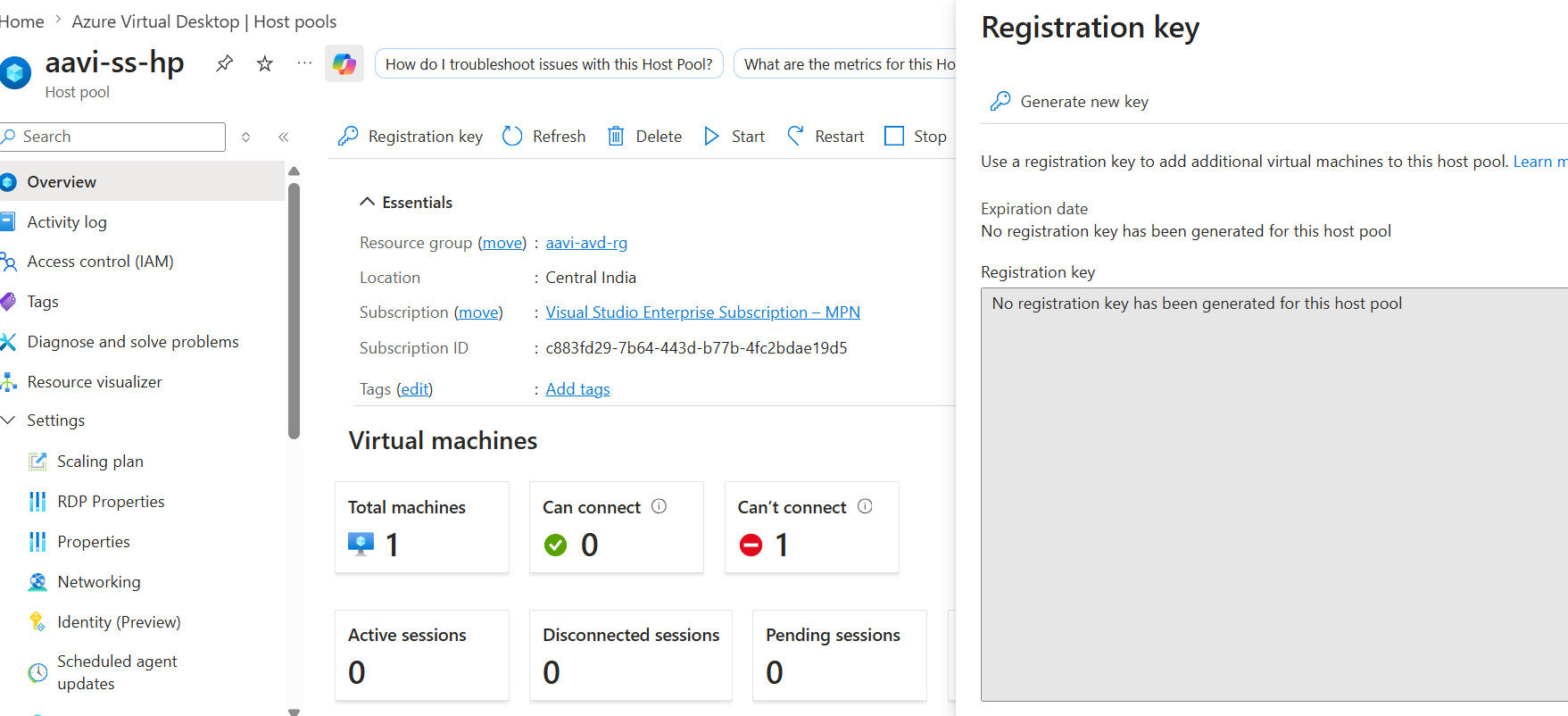
The host pool’s Registration key panel before a key has been generated.
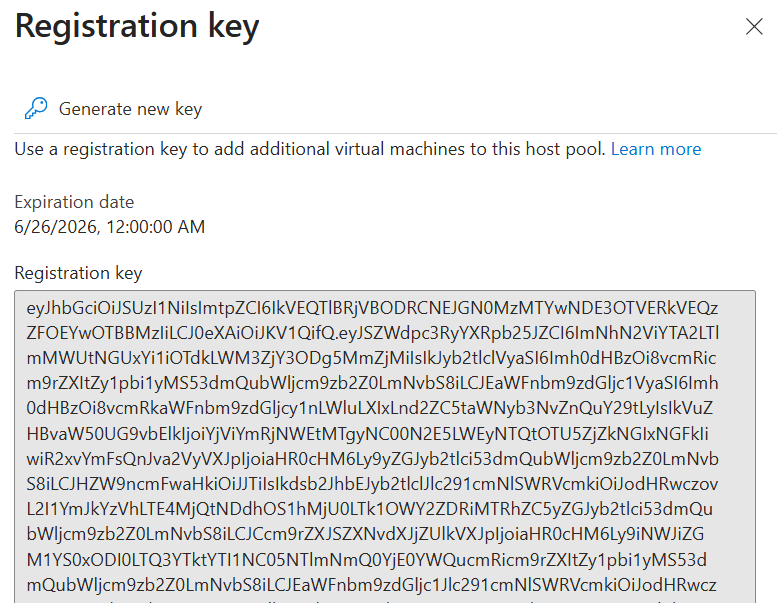
A freshly generated registration key, with its expiration date shown.
In this case, running the silent uninstall/reinstall produced a string of “Waiting for service ‘RDAgent’ (RDAgent) to stop…” warnings that never resolved — the silent uninstall got stuck waiting on a service that wouldn’t cooperate, which is a known rough edge with Win32_Product uninstalls (it’s notoriously slow and can hang on locked services). When the scripted route stalls like this, switching to the GUI installers directly is a reliable fallback.
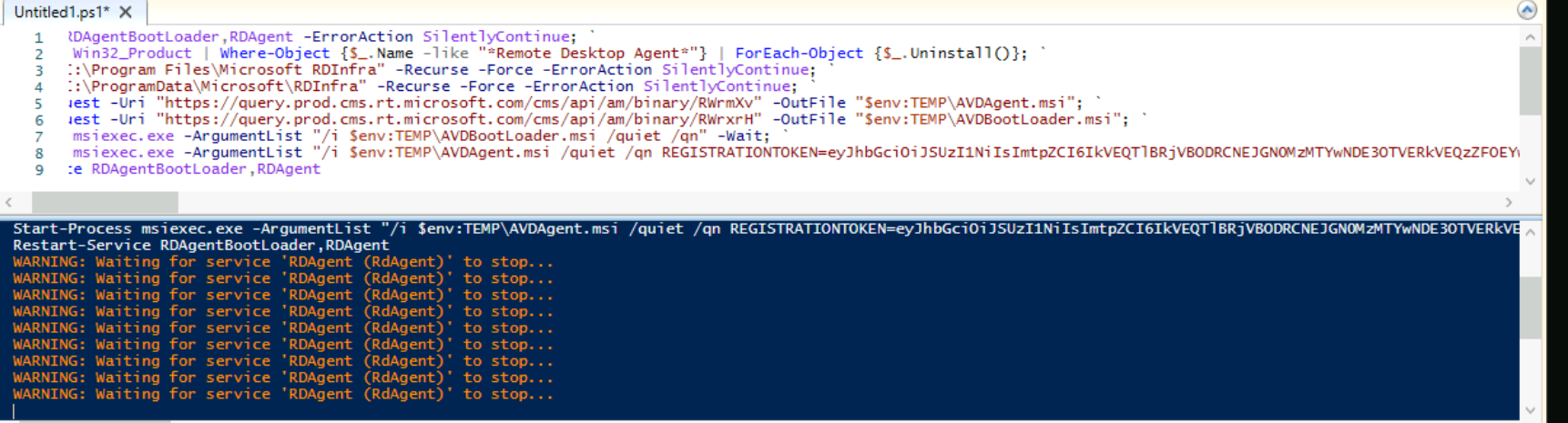
The reinstall script, and the uninstall hanging on “Waiting for service ‘RDAgent’ to stop…”.
Falling back to the GUI installers
Rather than fight the silent install, the next step was to grab the agent installers directly. After confirming PowerShell itself was current, the two MSIs were downloaded straight to the Downloads folder:

Checking the current PowerShell version via winget search.

The two agent installers, downloaded locally.
Running each .msi launches the familiar Setup Wizard: accept the license agreement, click Install, then Finish. The Boot Loader installer completed cleanly with no surprises.
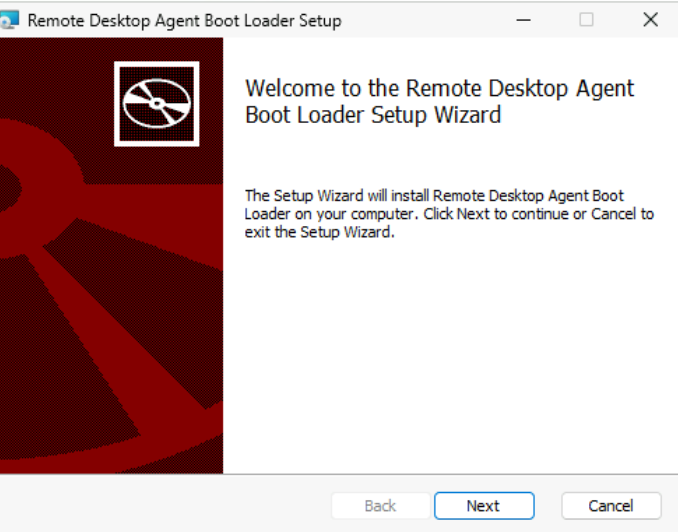
Remote Desktop Agent Boot Loader Setup — welcome screen.
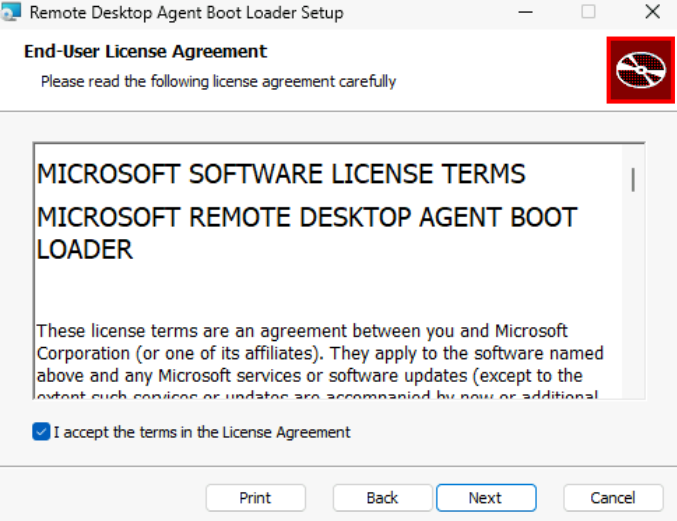
Accepting the license agreement.
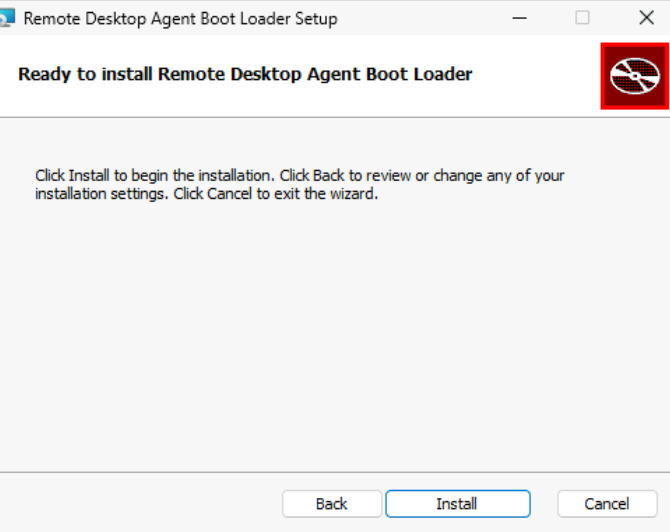
Ready to install.
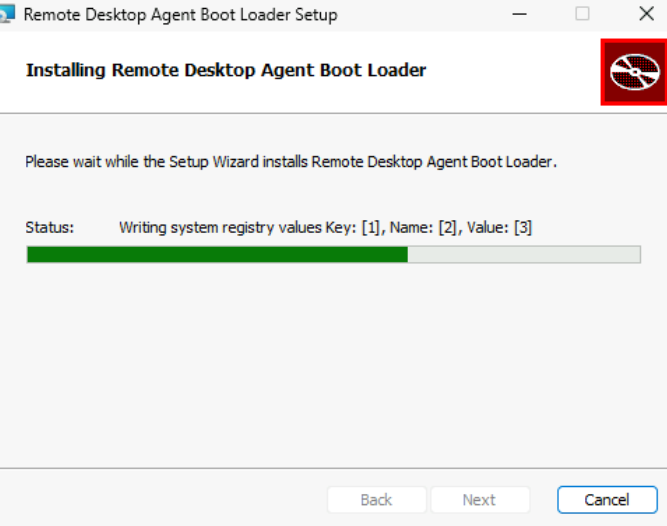
Installation in progress.
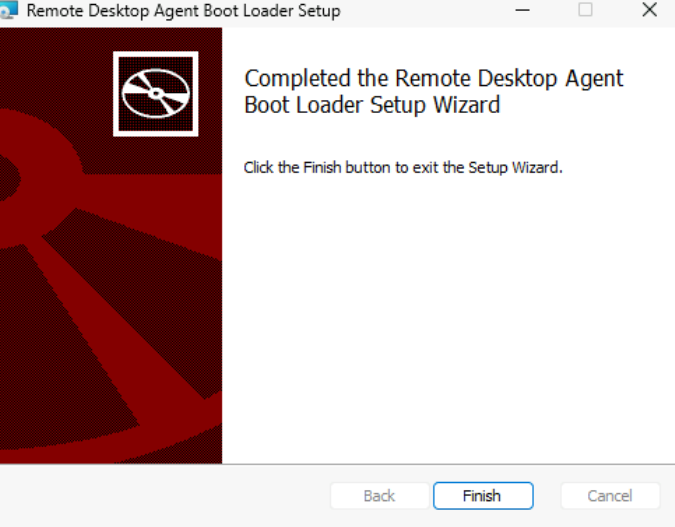
Boot Loader installation completed.
The gotcha: don’t forget to swap the placeholder
The Infrastructure Agent installer is where it’s easy to trip yourself up. It prompts for a registration token directly in the wizard — and if you’re working from a saved script or note, it’s tempting to paste the whole line including the placeholder text instead of the real value. Sure enough, the first attempt here left the literal placeholder INVALID_TOKEN sitting in the field. Naturally, that token is, as advertised, invalid.
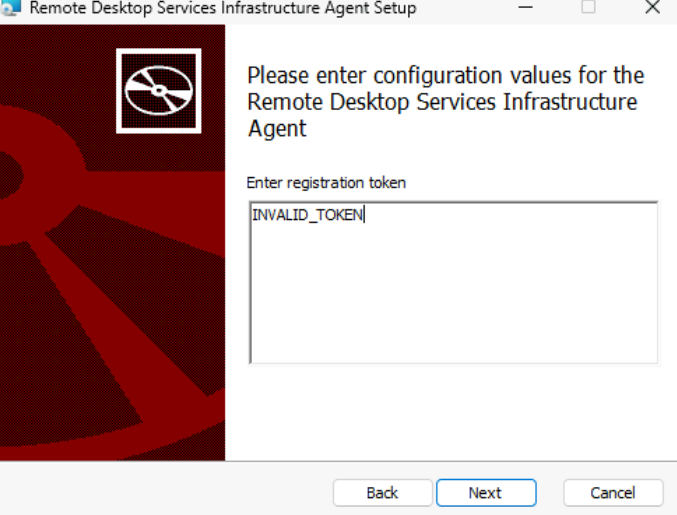
Oops — the placeholder text “INVALID_TOKEN” was pasted in instead of the real key.
The fix is simple but easy to miss in the moment: go back, clear the field, and paste the actual registration key generated from the host pool. Once the real token was in place, the install proceeded normally through to completion.
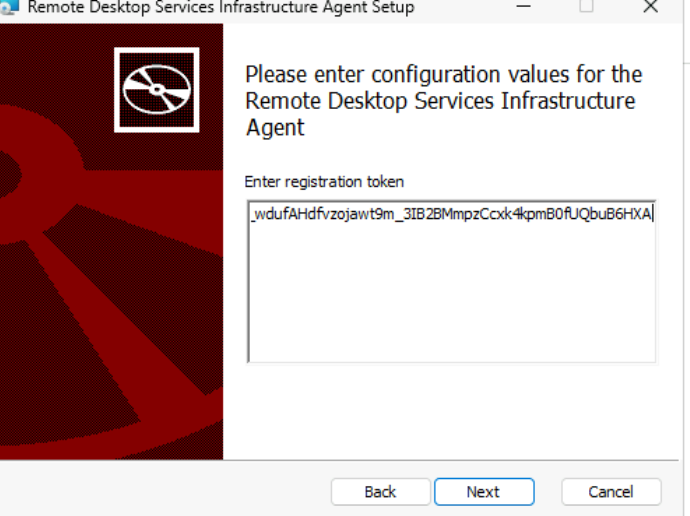
The real registration token in place, ready to continue.
Whenever a runbook or script template uses a placeholder like INVALID_TOKEN or <your-token-here>, double-check that it actually got replaced before you hit Install or Run. It’s a one-second mistake that costs you a full troubleshooting cycle to notice.
What Event Viewer revealed
While digging through the Application log, the Windows Installer event for the agent reconfiguration showed:
Windows Installer reconfigured the product. Product Name: Remote Desktop Services Infrastructure Agent… Reconfiguration success or error status: 1603.
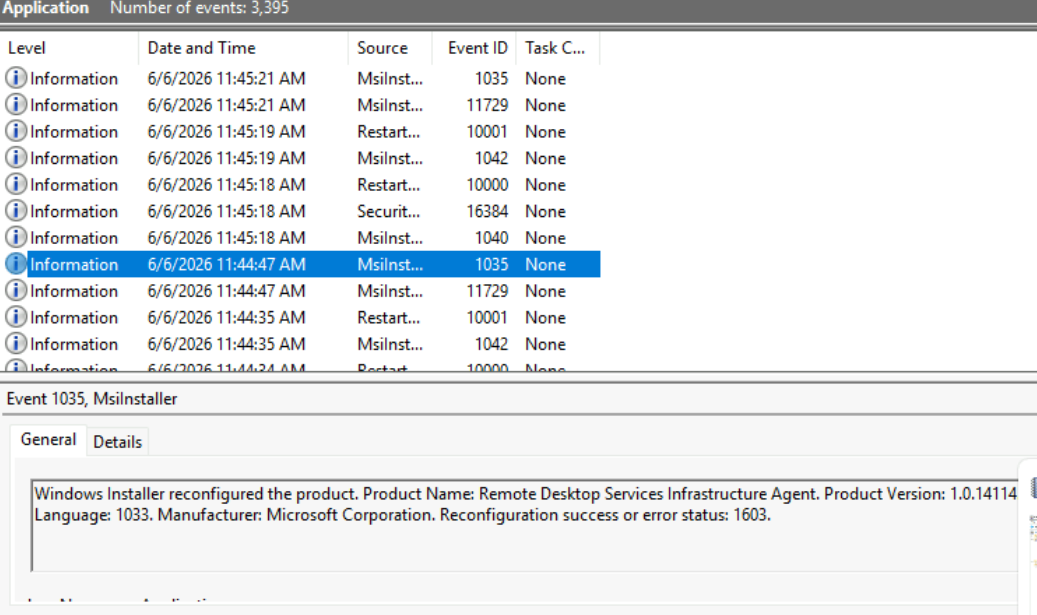
Event 1035 (MsiInstaller) reporting reconfiguration status 1603.
Error 1603 is MSI-speak for “a fatal error occurred during installation” — intentionally generic, but a strong hint that something was conflicting with the new install. Sure enough, Programs and Features showed two separate entries for “Remote Desktop Services Infrastructure Agent” on the same machine, at two different version numbers.

Two versions of the same agent registered side by side — a leftover from an incomplete prior uninstall.
A leftover, half-uninstalled prior version was still registered on the box, fighting with the fresh one for the same services and registry keys — exactly the kind of mess the cleanup script is meant to prevent, and exactly why the manual Remove-Item steps against the RDInfra folders matter. If an uninstall doesn’t fully complete, those folders (and the old registry entries) can stick around and quietly sabotage the next install.
For completeness, here’s the rest of the Infrastructure Agent install, run manually after clearing out the conflicting version:
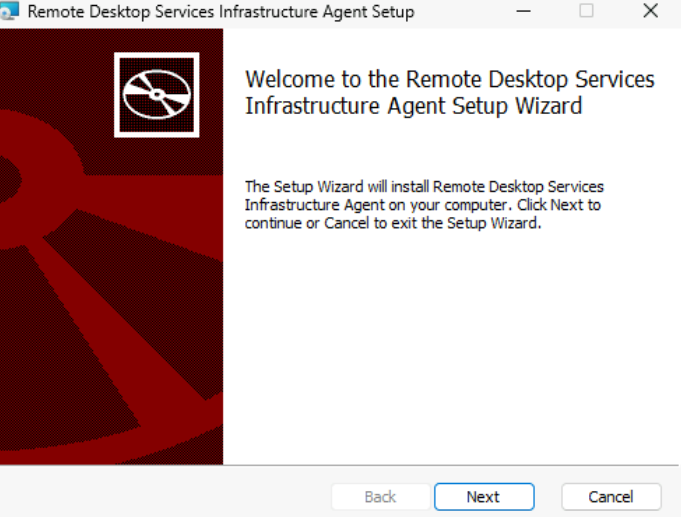
Remote Desktop Services Infrastructure Agent Setup — welcome screen.
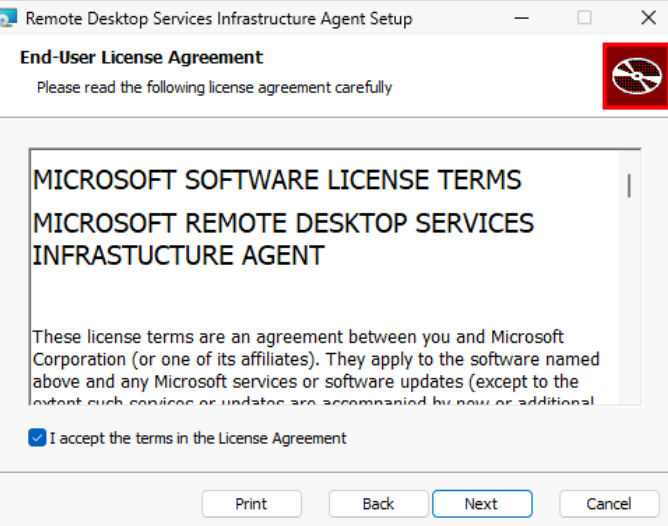
Accepting the license agreement.
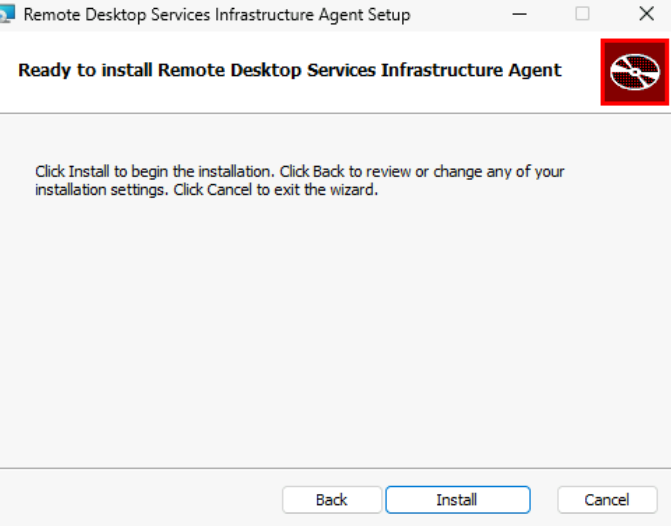
Ready to install, with the correct token in place.
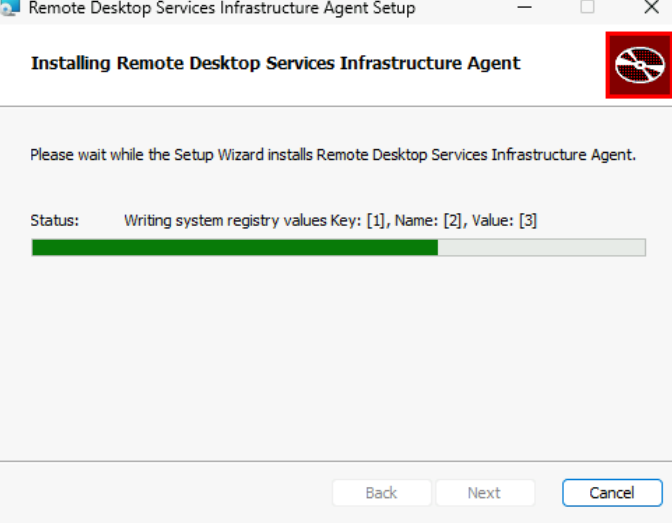
Installation in progress.
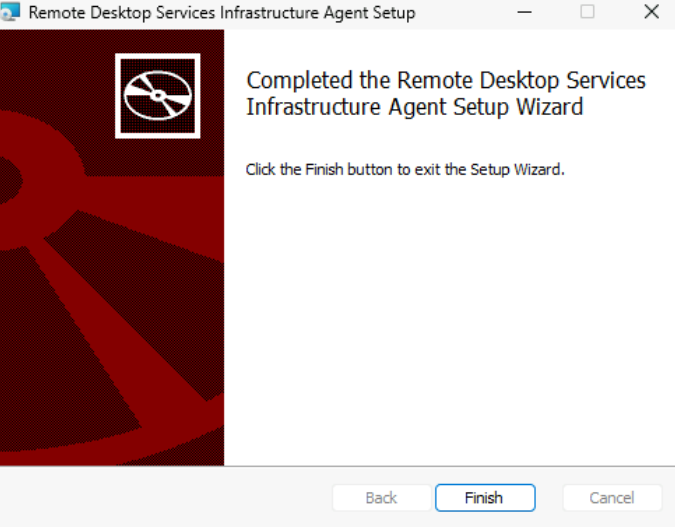
Infrastructure Agent installation completed.
When the host still won’t behave: rebuild it
Sometimes a session host has been patched, reinstalled, and nursed back to life so many times that the most efficient fix is to stop debugging it and start over. After the agent conflicts kept resurfacing, the call was made to delete the VM and its associated resources — the OS disk and network interface — directly from the Azure portal’s Delete Resources dialog, then re-provision a clean session host from the host pool.
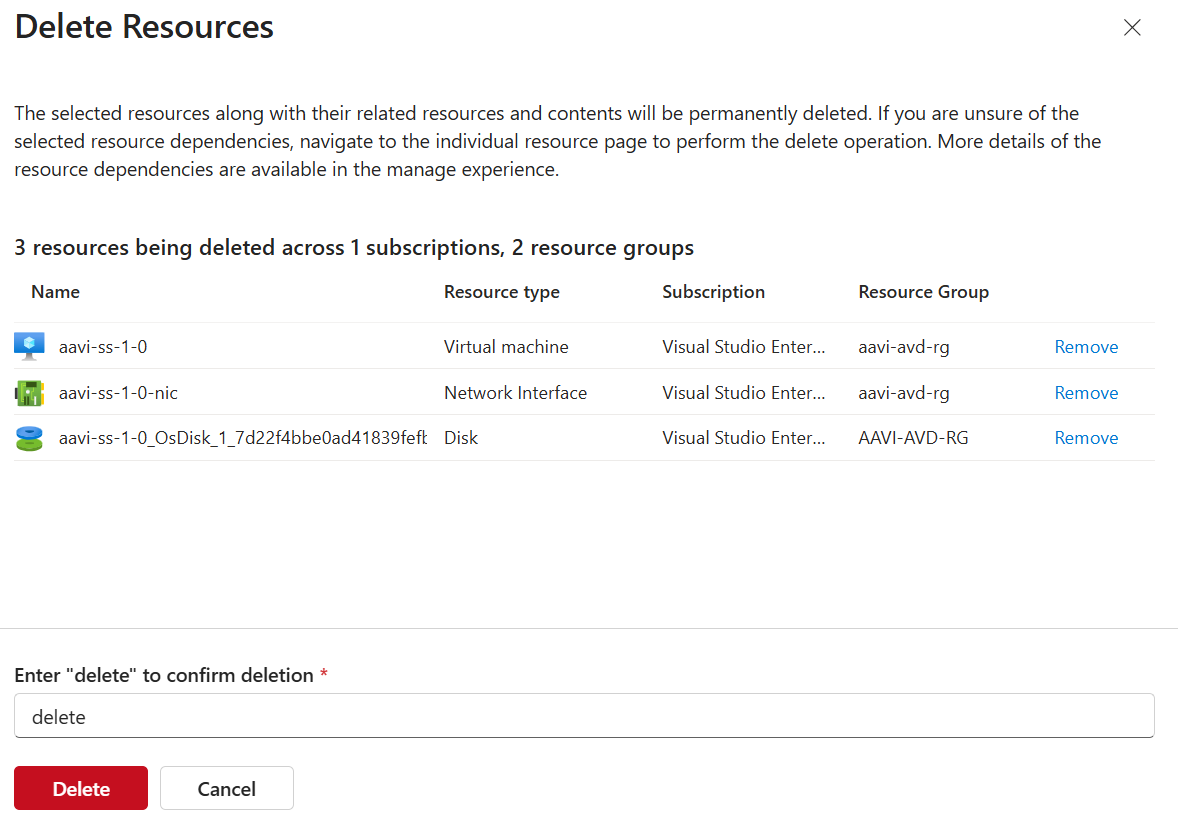
Deleting the VM, its NIC, and its disk together before re-provisioning a clean session host.
That’s not a defeat; for a host pool backed by a consistent image, deleting and re-adding a single bad VM is often faster and more reliable than continuing to chase agent corruption on a machine that’s already shown it doesn’t reinstall cleanly.
Takeaways
A few generalizable lessons from this incident:
- “VM running, host pool says unavailable” is an agent problem, not a VM problem. Don’t waste time on VM-level health checks if the machine is clearly powered on and reachable — go straight to RDAgent and RDAgentBootLoader.
- A service that won’t stay started is a sign of corruption, not a one-off glitch. If Start-Service gets immediately reverted, plan for a reinstall rather than repeated restarts.
- Silent installs can hang on stuck services. If a scripted uninstall/reinstall stalls waiting on a service to stop, the GUI installers are a solid fallback.
- Always verify the registration token field before installing — especially if you’re working from a script or note that contains a placeholder.
- MSI error 1603 plus duplicate entries in Programs and Features means a leftover install is in the way. Clean out the old version (folders, registry, and service) before trying again.
- Know when to stop debugging and rebuild. A host pool image makes session hosts disposable by design — use that to your advantage when an individual VM has degraded past the point of easy repair.
In 2nd part of this blog I will show how to build the new session host.

Azure Virtual Desktop: Onboarding AVD session hosts to Microsoft Defender for Endpoint

Job description of an AVD (Azure Virtual Desktop) Engineer

Automating Windows Updates for Azure Virtual Desktop (AVD) Golden Image
About Author
