Manage Thousands of Cloud VDI by deploying Docker Container as the Azure DevOps Pipeline Agent

Nowadays, large enterprises need to manage thousands of VDI for their customers in the public cloud, In the cloud everything is software-defined, so it’s absolutely necessary to run the entire VDI infrastructure as software.
Also, DaaS (Desktop As a Service) is no longer a buzzword it’s became a reality, Citrix has recently renamed their CVAD services to DaaS, this is going to continue for years now as on-premises VDI deployment is gradually phasing out due to the following reasons.
- Higher Cost
- Lack of agility
- Difficult to maintain compliance and standards
- Prone to human errors.
The benefits of deploying the VDI workload as the software will have the following advantages.
- Speed
- Consistency
- Repeatability
- Reliability
- Lower Cost
But when your VDI resources number in cloud are very high, you need to do a lot of changes every month and you need to deploy the changes continuously, if you are using any DevOps platform for orchestration you need many private agents to run your code in thousands of VDI across the cloud.
This is never possible if you choose VM’s as a private agent to run your pipelines because you can’t spin up multiple VM’s when there are many pipelines running together. for this scenario when you need to run multiple pipelines together you need more private agents. We have faced similar situation and to overcome that we have chosen docker container as a private agent to run the pipelines.
We have tested docker containers as a private agent in Azure DevOps and private runner in Gitlab, and we generally spin up a new docker container every time a new pipeline will run.
Today I will show you how you can deploy docker container as a private agent for Azure DevOps.
I have chosen Ubuntu Linux as the docker platform for this exercise.
Here are the step-by-step configuration which you can follow to implement this.
Install Docker Engine on Ubuntu
Prerequisites
OS requirements
To install Docker Engine, you need the 64-bit version of one of these Ubuntu versions:
- Ubuntu Impish 21.10
- Ubuntu Hirsute 21.04
- Ubuntu Focal 20.04 (LTS)
- Ubuntu Bionic 18.04 (LTS)
Docker Engine is supported on x86_64 (or amd64), armhf, arm64, and s390x architectures.
Check your OS version
cat /etc/*release
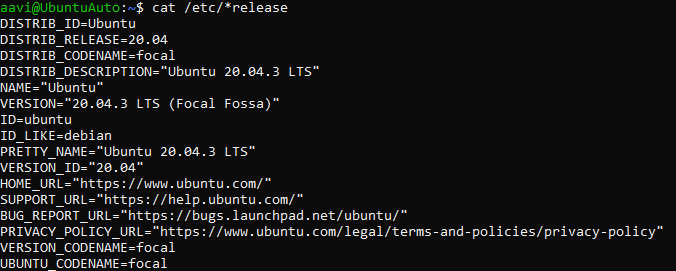
Our version is Ubuntu Focal version 20.0.4.3 LTS
Uninstall old versions
Older versions of Docker were called docker, docker.io, or docker-engine. If these are installed, uninstall them:
sudo apt-get remove docker docker-engine docker.io containerd runc
Since there is no docker package installed so I can see that.

Install using the repository
Before you install Docker Engine for the first time on a new host machine, you need to set up the Docker repository. Afterward, you can install and update Docker from the repository.
Set up the repository
Update the apt package index and install packages to allow apt to use a repository over HTTPS:
sudo apt-get update

Run this
sudo apt-get install \

ca-certificates \

curl \

gnupg \

lsb-release
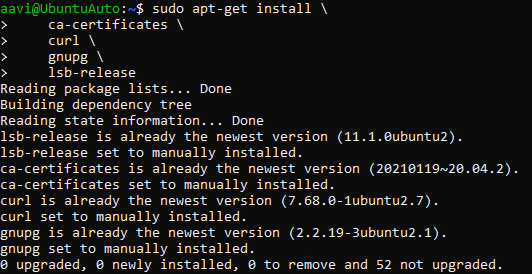
Add Docker’s official GPG key:
curl -fsSL https://download.docker.com/linux/ubuntu/gpg | sudo gpg --dearmor -o /usr/share/keyrings/docker-archive-keyring.gpg

Use the following command to set up the stable repository. To add the nightly or test repository, add the word nightly or test (or both) after the word stable in the commands below. Learn about nightly and test channels.
echo \

"deb [arch=$(dpkg --print-architecture) signed-by=/usr/share/keyrings/docker-archive-keyring.gpg] https://download.docker.com/linux/ubuntu \

$(lsb_release -cs) stable" | sudo tee /etc/apt/sources.list.d/docker.list > /dev/null

Install Docker Engine
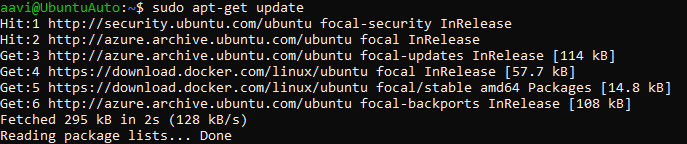
Update the apt package index, and install the latest version of Docker Engine and container id, or go to the next step to install a specific version:
sudo apt-get update
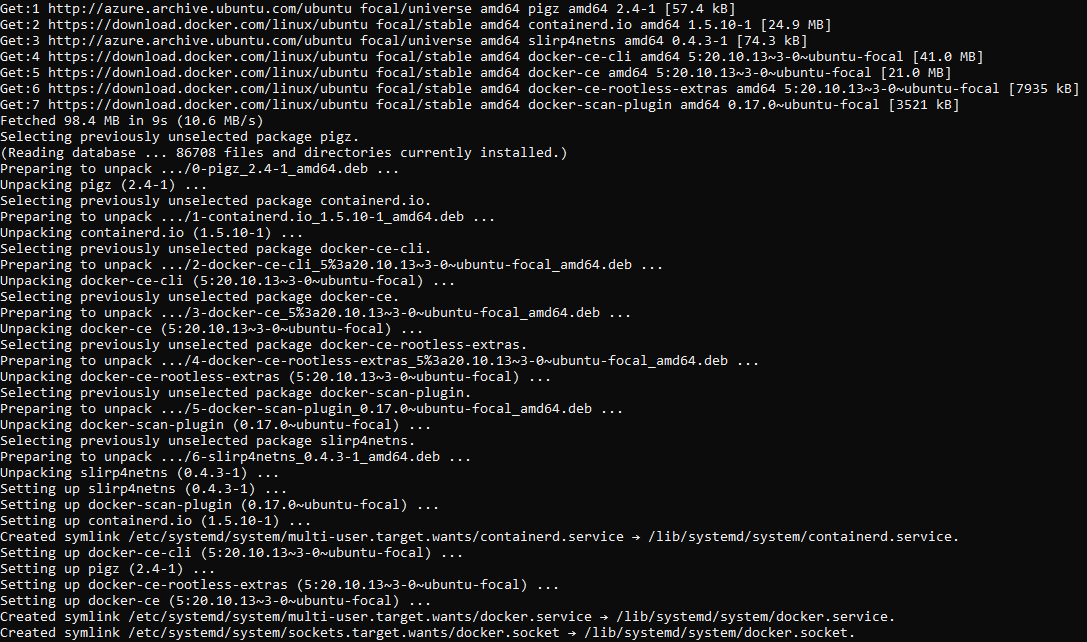
sudo apt-get install docker-ce docker-ce-cli containerd.io
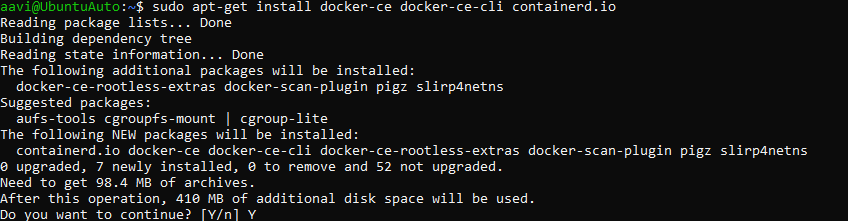
Once you type Y it will show like this
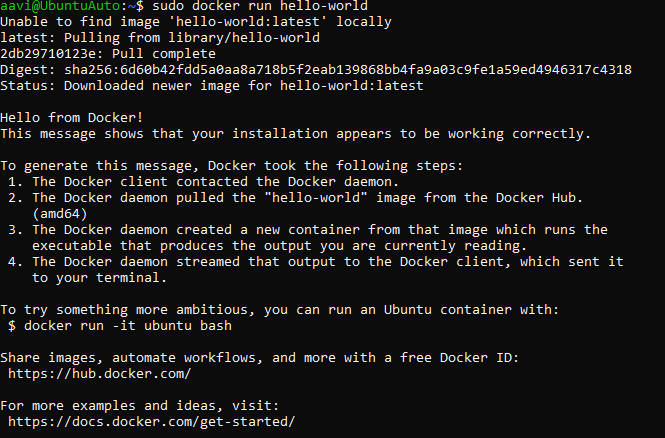
Verify that Docker Engine is installed correctly by running the hello-world image.
Manage Docker as a non-root user
If you don’t want to preface the docker command with sudo, create a Unix group called docker and add users to it. When the Docker daemon starts, it creates a Unix socket accessible by members of the docker group.
Create the docker group.
sudo groupadd docker

Add your user to the docker group.
sudo usermod -aG docker $USER

Log out and log back in so that your group membership is re-evaluated.
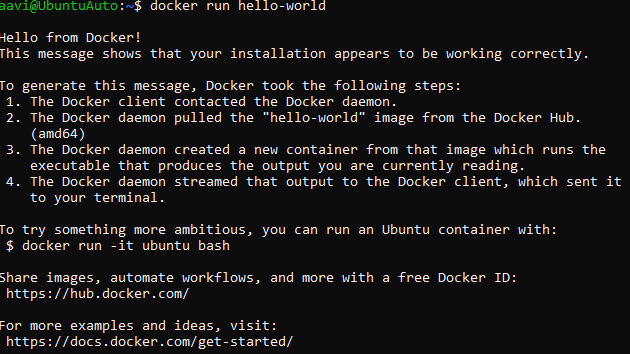
Verify that you can run docker commands without sudo.
docker run hello-world
Create and build the Dockerfile
Create a new directory (recommended):
mkdir ~/dockeragent

Change directories to this new directory:

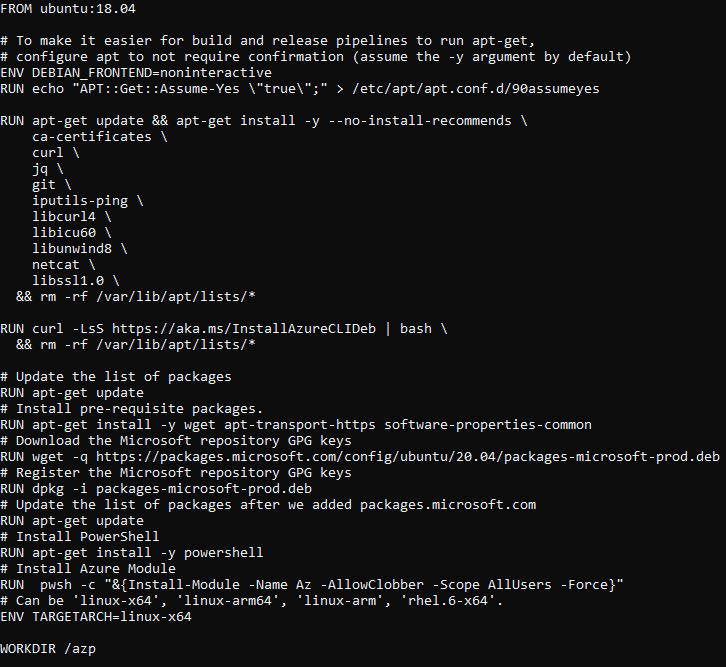
Save the following content to ~/dockeragent/Dockerfile, Your image file content should look like the below.
FROM ubuntu:18.04

# To make it easier for build and release pipelines to run apt-get,

# configure apt to not require confirmation (assume the -y argument by default)

ENV DEBIAN_FRONTEND=noninteractive

RUN echo "APT::Get::Assume-Yes \"true\";" > /etc/apt/apt.conf.d/90assumeyes

RUN apt-get update && apt-get install -y --no-install-recommends \

ca-certificates \

curl \

jq \

git \

iputils-ping \

libcurl4 \

libicu60 \

libunwind8 \

netcat \

libssl1.0 \

&& rm -rf /var/lib/apt/lists/*

RUN curl -LsS https://aka.ms/InstallAzureCLIDeb | bash \

&& rm -rf /var/lib/apt/lists/*

# Update the list of packages

RUN apt-get update

# Install pre-requisite packages.

RUN apt-get install -y wget apt-transport-https software-properties-common

# Download the Microsoft repository GPG keys

RUN wget -q https://packages.microsoft.com/config/ubuntu/20.04/packages-microsoft-prod.deb

# Register the Microsoft repository GPG keys

RUN dpkg -i packages-microsoft-prod.deb

# Update the list of packages after we added packages.microsoft.com

RUN apt-get update

# Install PowerShell

RUN apt-get install -y powershell

# Install Azure Module

RUN pwsh -c "&{Install-Module -Name Az -AllowClobber -Scope AllUsers -Force}"

# Can be 'linux-x64', 'linux-arm64', 'linux-arm', 'rhel.6-x64'.

ENV TARGETARCH=linux-x64

WORKDIR /azp

COPY ./start.sh .

RUN chmod +x start.sh

Open the file with VI editor, and you can view the changes
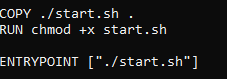
Save the following content to ~/dockeragent/start.sh, making sure to use Unix-style (LF) line endings, your start.sh should look like below.
#!/bin/bash

set -e

if [ -z "$AZP_URL" ]; then

echo 1>&2 "error: missing AZP_URL environment variable"

exit 1

fi

if [ -z "$AZP_TOKEN_FILE" ]; then

if [ -z "$AZP_TOKEN" ]; then

echo 1>&2 "error: missing AZP_TOKEN environment variable"

exit 1

fi

AZP_TOKEN_FILE=/azp/.token

echo -n $AZP_TOKEN > "$AZP_TOKEN_FILE"

fi

unset AZP_TOKEN

if [ -n "$AZP_WORK" ]; then

mkdir -p "$AZP_WORK"

fi

export AGENT_ALLOW_RUNASROOT="1"

cleanup() {

if [ -e config.sh ]; then

print_header "Cleanup. Removing Azure Pipelines agent..."

# If the agent has some running jobs, the configuration removal process will fail.

# So, give it some time to finish the job.

while true; do

./config.sh remove --unattended --auth PAT --token $(cat "$AZP_TOKEN_FILE") && break

echo "Retrying in 30 seconds..."

sleep 30

done

fi

}

print_header() {

lightcyan='\033[1;36m'

nocolor='\033[0m'

echo -e "${lightcyan}$1${nocolor}"

}

# Let the agent ignore the token env variables

export VSO_AGENT_IGNORE=AZP_TOKEN,AZP_TOKEN_FILE

print_header "1. Determining matching Azure Pipelines agent..."

AZP_AGENT_PACKAGES=$(curl -LsS \

-u user:$(cat "$AZP_TOKEN_FILE") \

-H 'Accept:application/json;' \

"$AZP_URL/_apis/distributedtask/packages/agent?platform=$TARGETARCH&top=1")

AZP_AGENT_PACKAGE_LATEST_URL=$(echo "$AZP_AGENT_PACKAGES" | jq -r '.value[0].downloadUrl')

if [ -z "$AZP_AGENT_PACKAGE_LATEST_URL" -o "$AZP_AGENT_PACKAGE_LATEST_URL" == "null" ]; then

echo 1>&2 "error: could not determine a matching Azure Pipelines agent"

echo 1>&2 "check that account '$AZP_URL' is correct and the token is valid for that account"

exit 1

fi

print_header "2. Downloading and extracting Azure Pipelines agent..."

curl -LsS $AZP_AGENT_PACKAGE_LATEST_URL | tar -xz & wait $!

source ./env.sh

print_header "3. Configuring Azure Pipelines agent..."

./config.sh --unattended \

--agent "${AZP_AGENT_NAME:-$(hostname)}" \

--url "$AZP_URL" \

--auth PAT \

--token $(cat "$AZP_TOKEN_FILE") \

--pool "${AZP_POOL:-Default}" \

--work "${AZP_WORK:-_work}" \

--replace \

--acceptTeeEula & wait $!

print_header "4. Running Azure Pipelines agent..."

trap 'cleanup; exit 0' EXIT

trap 'cleanup; exit 130' INT

trap 'cleanup; exit 143' TERM

chmod +x ./run-docker.sh

# To be aware of TERM and INT signals call run.sh

# Running it with the --once flag at the end will shut down the agent after the build is executed

./run-docker.sh "$@" & wait $!
vi start.sh

Open vi editor and make the changes and cross check the file with cat command 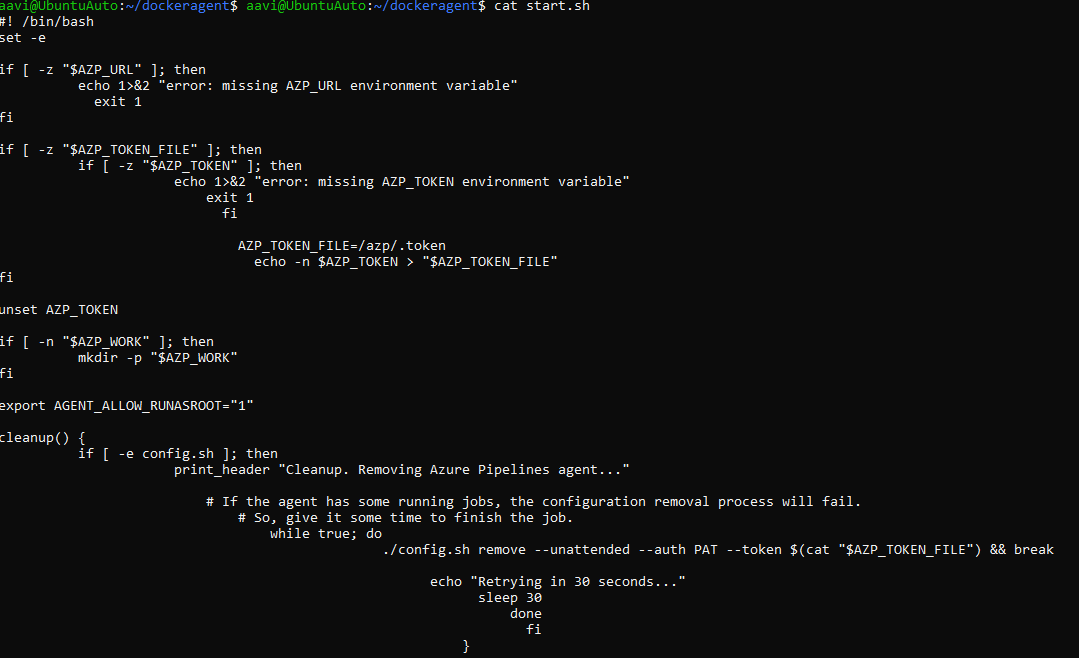
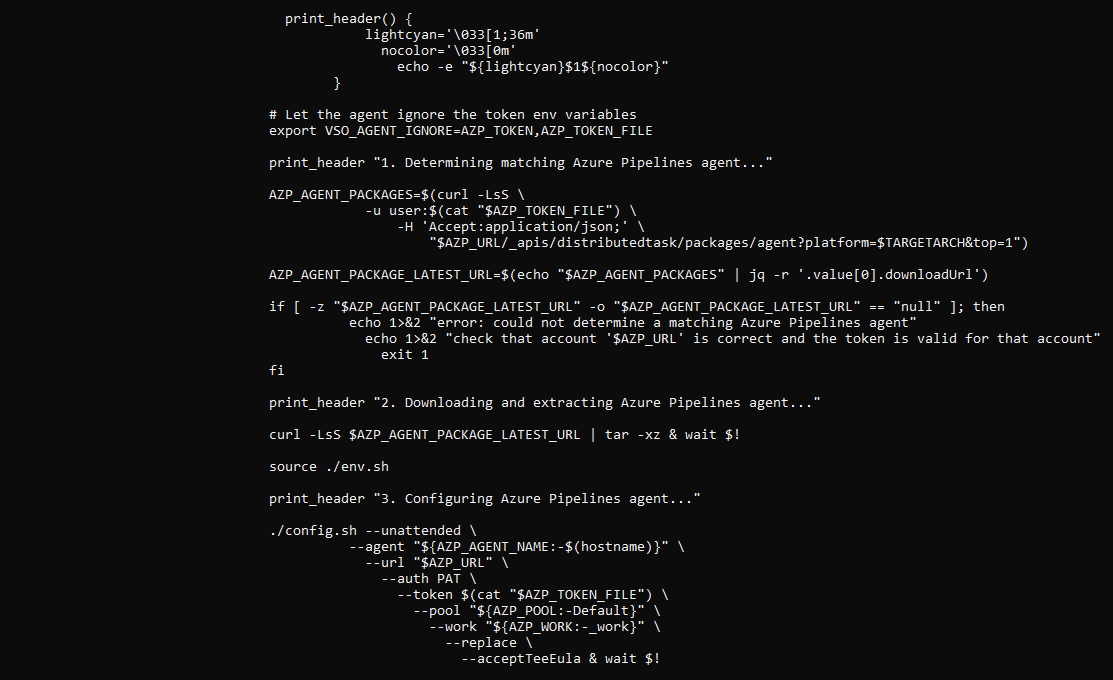
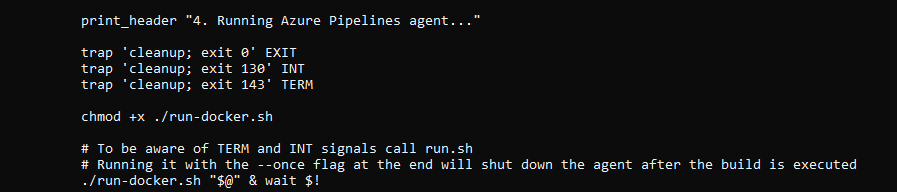
Run the following command within that directory:
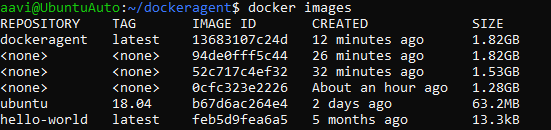
docker build -t dockeragent:latest .
This command builds the Dockerfile in the current directory.
The final image is tagged dockeragent:latest. You can easily run it in a container as dockeragent, because the latest tag is the default if no tag is specified.
Check the image
Start the image
Now that you have created an image, you can run a container.
- Open a terminal.
- Run the container. This installs the latest version of the agent, configures it, and runs the agent. It targets the Default pool of a specified Azure DevOps or Azure DevOps Server instance of your choice:
docker run -e AZP_URL=https://dev.azure.com/myOrg/ -e AZP_TOKEN=2746sb7lxqurq2igb7mvxj -e AZP_AGENT_NAME=mydockeragent dockeragent:latest
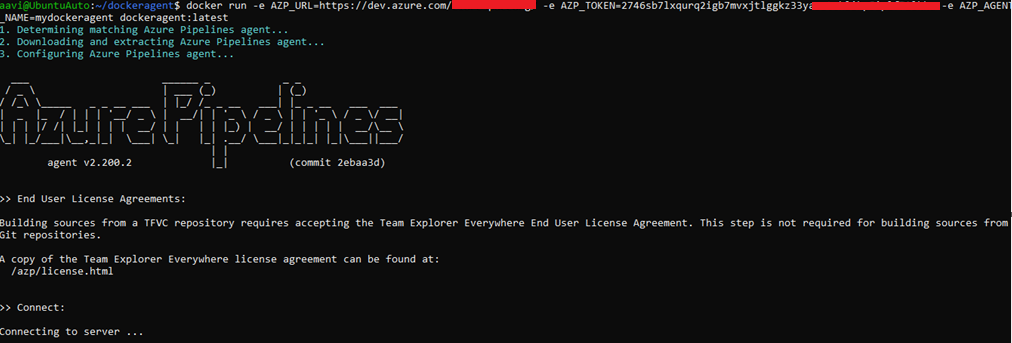

Go to Azure DevOps
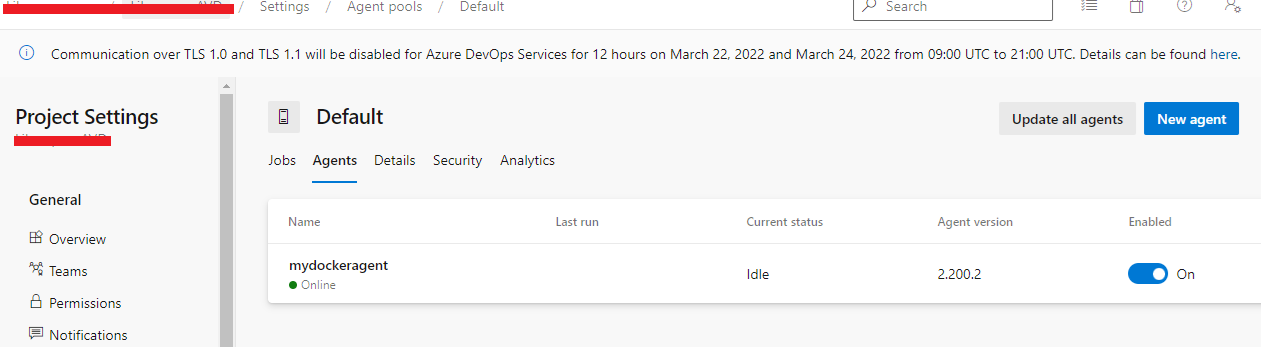
As you see agent is running now. The agent name is mydockeragent which I have given, however you can give any name of your choice.
If you want to stop the agent press Ctrl + C
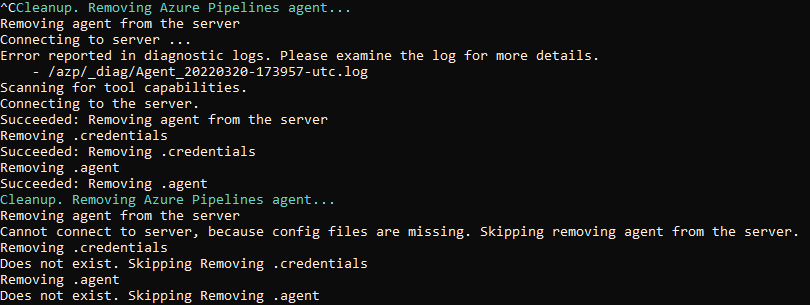
The agent will stop immediately.
If you want a fresh agent container for every pipeline job, pass the --once flag to the run command.
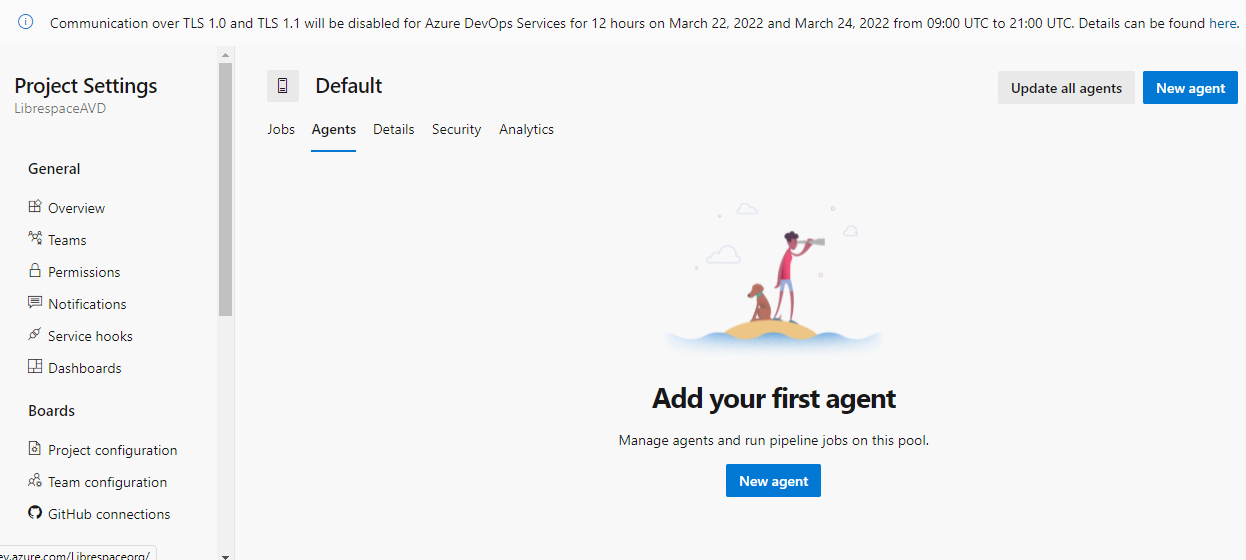
Once you stop an agent you can go back to azure devops to see that no agent is now running against your default pool.
You can see that no agent is running as below.
That’s it, I hope you have understood how to configure docker agents to run the Azure DevOps pipelines. You can run docker agent every time a new pipeline is triggered. I think you have also noticed that I have installed PowerShell core and Azure PowerShell Modules in the docker container which make your jobs easy if you are using PowerShell core. If you are using other extensions like terraform kindly add that in your container based on your pipeline code. For Azure Virtual Desktop you can use a Linux container but for Citrix SDK please use a windows container. However concept is same. If you are not using Azure DevOps as your CI/CD platform and if you are using Gitlab, there are more options, Gitlab users can run GitLab Runner inside a docker container as well, I will show that later. For Gitlab users you can run the runner into a Kubernetes cluster. The official way of deploying a GitLab Runner instance into your Kubernetes cluster is by using the gitlab-runner Helm chart.
This chart configures GitLab Runner to:
- Run using the Kubernetes executor for GitLab Runner.
- For each new job it receives from GitLab CI/CD, it will provision a new pod within the specified namespace to run it.
I will show this above configuration in a different post.
That’s all about today. That’s for your time.
Stay tuned and you have a great day ahead.

Azure Virtual Desktop: Onboarding AVD session hosts to Microsoft Defender for Endpoint

Azure Virtual Desktop Beyond Azure: Compare AVD Hybrid vs. AVD on Azure Local

Organized AVD Hackathon
About Author
